
Home Blog Page 17

How To Create a Meme With The Creator7

0

How To Create a Meme With The Creator7: A Fun and Easy Guide

Did you know that nearly 10,000 people search for how to make a meme every month? That means a whole lot of us are out here trying to turn our witty thoughts into viral internet sensations. Lucky for you, I’m about to show you how to do just that—easily, quickly, and without needing a PhD in Photoshop.

Today, I’m bringing you a new Tutorial Tuesday (because who doesn’t love a good alliteration?) where we’ll use The Creator7 to whip up memes that will make the internet roar with laughter. Or, at the very least, get a polite chuckle.

What Exactly Is a Meme?

Before we get started, let’s define what a meme actually is. A meme is simply an image—sometimes a video or GIF—with some text overlaid on it. This text usually contains:

  • A funny caption that makes your friends spit out their coffee.
  • A motivational quote that inspires people to quit their jobs and live their dreams (or at least take a nap).
  • A relatable thought that makes people go, “OMG, same.”

Memes spread like wildfire because they’re short, sweet, and hit the right humor nerve. But how do you make one without spending hours in complicated design software? That’s where The Creator7 comes in.

Why Use The Creator7 for Memes?

If you’ve ever tried using Photoshop to create a meme, you know it’s like trying to open a pickle jar with one hand—frustrating and borderline impossible. But The Creator7 is designed for people who want results fast without a steep learning curve. Here’s why it’s perfect for memes:

  • Easy to use: No graphic design degree required.
  • Quick editing: Drag, drop, type, laugh.
  • Free images available: Because we’re not about that “copyright infringement” life.

Step-by-Step Guide: How to Create a Meme With The Creator7

Step 1: Grab a Free Image

Before you unleash your inner meme genius, you need a solid image. Good news—you don’t have to steal images from Google. There are websites that give out high-quality, royalty-free images for absolutely zero dollars. One of my favorites is MorgueFile, which offers countless images that are free to use.

Step 2: Pick a Hilarious or Insightful Quote

Once your background is set, it’s time to add the words. Your meme’s success depends on nailing the caption. A few strategies that work:

  • Funny Observations: Think of something universally relatable. Example: “That moment when you realize weekends aren’t long enough.”
  • Inspirational Quotes (With a Twist): Something like, “Dream big, nap often.” (See? Motivating and realistic.)
  • Pop Culture References: If you can tie it to a trending topic, you might just go viral!

If you’re short on ideas, Google’s your best friend. Type in “funny quotes” or “motivational quotes,” and you’ll have endless inspiration.

Step 3: Open The Creator7 and Start Designing

Now for the fun part! Open The Creator7, upload your chosen image, and type in your perfect meme caption. Here’s how:

  1. Upload your image: Grab that beautiful free image you downloaded.
  2. Add text: Type in your caption and play around with fonts and colors until it looks just right.
  3. Resize as needed: Your perfect meme should fit well on social media platforms.

Step 4: Download and Share Your Meme

Once your meme masterpiece is finished, it’s time to share it with the world. Click that beautiful download button, save your meme, and plaster it all over the internet. Post it on social media, add it to your website, or send it to that one friend who always forgets to text back.

Bonus: How to Find the Best Keywords for Your Meme

If you’re creating memes for a blog or an online business, you might want to sprinkle in some SEO magic. That’s where Google’s Keyword Planner comes in. It helps you see how many people are searching for terms like “funny dog memes” or “best motivational memes.” If you’re strategic, you can make memes that match trending searches—hello, viral potential!

FAQs

Can I use The Creator7 to make memes for social media?
Absolutely! The Creator7 is perfect for creating shareable memes for Instagram, Facebook, Twitter, and more.

Where can I find free images for my memes?
Try MorgueFile, Pixabay, or Unsplash. They have tons of free, high-quality photos.

Do I need any graphic design experience to use The Creator7?
Nope! If you can drag and drop, you can make a meme.

How can I make my meme go viral?
Pick a trending topic, make it funny, and share it on multiple platforms. Oh, and cross your fingers.

Final Thoughts

And there you have it! You’re now equipped with everything you need to create hilarious, shareable, and possibly viral memes using The Creator7. Whether you’re creating memes for fun or as part of a business strategy, the process is fast, easy, and (most importantly) fun.

So go forth, my meme-making friend, and spread laughter across the internet. And if your meme becomes the next big thing, don’t forget who taught you how to make it. 😉


Create and Sell Your Own Logo Templates

0

Create and Sell Your Own Logo Templates – A Fun and Profitable Side Hustle

Ever thought of making money while sitting in your pajamas, drinking coffee, and clicking away on your laptop? Well, creating and selling your own logo templates is the modern-day version of striking gold—except without all the digging and dirt.

In this tutorial, we’ll dive deep into how you can create your own professional-looking logo templates using The Logo Creator and sell them for profit on platforms like Fiverr and Etsy. You don’t need a fancy degree, a warehouse full of supplies, or even a storefront—just a little creativity and some determination.

Why Selling Logo Templates is a Genius Idea

You know what’s better than designing a custom logo? Designing it ONCE and selling it a hundred times! That’s the beauty of logo templates—you create one file, and multiple customers can buy, download, and use it instantly. No revisions, no extra effort, and certainly no headaches from demanding clients.

The Perks of Selling Logo Templates:

  • Passive Income: You create the template once and sell it repeatedly.
  • Work From Anywhere: Yes, even from your couch in fuzzy slippers.
  • Low Startup Costs: No expensive software or brick-and-mortar store required.
  • Huge Market Demand: Every business needs a logo. Every. Single. One.
  • Easy to Get Started: No advanced graphic design skills required.

Sound too good to be true? It’s not—and I’m going to teach you exactly how to do it.

Getting Started with The Logo Creator

Now, if you’re thinking, “But I’m not a designer!” don’t worry. That’s where The Logo Creator swoops in like a superhero. This software makes designing logos as easy as pie (and trust me, pie is pretty easy—just ask my grandma).

Why Use The Logo Creator?

  • No Design Experience Needed: You don’t need to be the next Picasso to make professional-looking logos.
  • Drag-and-Drop Simplicity: Choose elements, arrange them, and boom—instant logo magic.
  • Affordable Software: Unlike pricey Adobe subscriptions, this won’t require you to sell a kidney.
  • Built-in Templates: You don’t have to start from scratch, just tweak and personalize.

How to Create a Logo Template

Here comes the fun part! Follow these steps to create and sell your own logo templates:

  1. Open The Logo Creator: Fire up the software and prepare to embark on a creative journey.
  2. Choose a Template: Pick a base template or start from scratch—whichever speaks to your inner artist.
  3. Customize Your Logo: Change colors, fonts, images, and layout to make your design unique.
  4. Save Your File: Save it in a high-resolution format like PNG, JPEG, and vector formats for flexibility.
  5. Prepare for Sale: Package your design with various formats and include a simple “how-to-use” guide.

Where to Sell Your Logo Templates

Creating your logo is just half the game—the real magic happens when you sell it. Luckily, there are many platforms eager to help you make your first sale.

Best Marketplaces to Sell Logo Templates

  • Fiverr: The go-to platform for freelancers. Create a gig, add samples, and let clients come to you.
  • Etsy: This isn’t just for handmade goods—you can sell digital logo templates to small business owners.
  • Creative Market: A marketplace designed specifically for selling digital assets.
  • Envato Elements: A premium design marketplace where businesses look for high-quality assets.
  • Your Own Website: Set up your own shop with minimal effort using Laughingbird Software.

Pricing Your Logo Templates

Here’s the million-dollar question (or at least the few-hundred-bucks question): “How much should I charge?”

Pricing depends on a few factors, including exclusivity, complexity, and market demand. Here’s a rough pricing guide:

  • Basic Logo Templates: $5 – $15
  • Customizable Logo Bundles: $20 – $50
  • Exclusive Logo Designs: $50 – $200

Remember, higher prices often suggest better quality. Don’t sell yourself short!

How to Market Your Logo Templates

You’ve made an amazing logo template, listed it on Etsy, and… crickets. What gives?

The truth is, you need to market your templates to get those sweet, sweet sales.

Top Ways to Market Your Logo Templates

  • Optimize for SEO: Use keywords like “custom logo template” and “editable logo” in your listings.
  • Social Media Promotion: Share your designs on Instagram, Pinterest, and Facebook groups.
  • Offer Freebies: Give away a free logo template in exchange for an email subscription.
  • Run a Discount Launch: Offer your first templates at a discount to attract initial buyers.
  • Good Reviews Matter: Ask happy customers to leave reviews (it helps more than you think!).

Common Mistakes to Avoid

Nobody likes learning things the hard way, so let’s talk about common pitfalls new logo sellers run into.

Biggest Mistakes New Sellers Make

  • Overcomplicating Designs: Simple designs sell best—don’t go overboard with fancy elements.
  • Pricing Too Low: Don’t undervalue your work. Set reasonable prices.
  • Ignoring SEO: Etsy and Fiverr have search algorithms—use keywords wisely!
  • Not Offering Multiple Formats: Customers want PNGs, JPEGs, and vector files.
  • Lack of Licensing Info: Clearly state what buyers can and can’t do with your template.

FAQs

Do I need to be a graphic designer to create logo templates?
Nope! Thanks to tools like The Logo Creator, anyone can create professional-looking templates without a design background.

How long does it take to make a logo template?
Once you get the hang of it, you can whip up a new logo template in 15-30 minutes. That’s faster than waiting in line for coffee!

Can I really make money selling logo templates?
Absolutely! Many designers make thousands of dollars in passive income by selling templates online.

What file formats should I include for my buyers?
At minimum, provide PNG, JPEG, and AI or SVG (for vector files). Offering multiple formats makes your listing more attractive.

How do I stand out in a crowded market?
Find a niche! Instead of generic logos, offer templates specific to photographers, salons, or real estate agents.

Start Creating and Selling Your Logo Templates Today!

So there you have it—everything you need to start creating and selling your own logo templates. Whether you want extra cash for a fun vacation or you’re dreaming big about full-time income, this is a fantastic way to make money online.

Ready to get started? Download The Logo Creator and turn your creativity into cash today!

Create a Buy Button with The Logo Creator

0

Create a Buy Button with The Logo Creator – A Fun and Easy Guide

Hey everybody!

So, I was digging through some old files (you know, like that mysterious junk drawer we all have), and I found this video I created a while back. It didn’t get much love back then—probably because it was one of my earlier “How-To” videos. But let’s be honest, classic content deserves a second chance, right?

Well, today, we’re bringing it back out into the light! This video is pretty handy, and if you’re looking for some creative ways to design amazing images for your website—or specifically, how to create a buy button with The Logo Creator—you’re in the right place.

Check out the video here:
https://youtu.be/iaBbr5QF4qk

Also, if you love cool design elements, we now have an awesome set over at Laughingbird Software for buttons, banners, and badges. Yeah, we love making things easy and fun around here.

Now, let’s dive into how you can create your very own buy button using The Logo Creator!

Why You Need a Custom Buy Button on Your Website

So, why should you even bother creating a custom buy button? Well, think of it this way—have you ever been on a website that had an uninspiring, barely visible “BUY NOW” button? Yeah, it’s like they don’t actually want you to click.

Here’s why a well-designed buy button makes all the difference:

  • It grabs attention: A custom button stands out way more than the generic ones everyone else is using.
  • It builds trust: A great-looking buy button makes your site look professional, which in turn makes people feel confident pressing that oh-so-important purchase button.
  • It increases conversions: The easier and more enticing it is to buy, the more likely customers will take action.
  • It fits your brand: With The Logo Creator, you can make a button that actually matches your website’s style.

In short, if you’ve put in all the work to get people to your product page, the last thing you want is for them to get cold feet because your design screams “I made this in five seconds.”

How to Create a Buy Button with The Logo Creator

Okay, let’s get into the fun stuff—actually creating your buy button! The Logo Creator makes it super simple, so don’t worry if you’re not a design whiz. Follow these steps, and you’ll have a sleek, custom buy button in no time.

Step 1: Open The Logo Creator & Choose a Template

If you haven’t already grabbed The Logo Creator, head over to Laughingbird Software and get started. Once you’ve got it open:

  • Choose a template that will serve as a base for your button.
  • Look for one with a shape you like—circles, rectangles, or even those fancy badge-style buttons.
  • Don’t worry too much about colors yet. We’ll tweak everything soon.

Step 2: Customize Your Button’s Shape and Color

Now comes the fun part—making it truly yours.

  • Adjust the size and shape to fit your website’s style.
  • Pick a color that pops! Remember, red, orange, and green are popular choices for CTA (Call-To-Action) buttons.
  • Add some gradients or effects to give it a modern look.

Step 3: Add Text and Icons

Your button needs to tell people exactly what’s going to happen when they click.

  • Type something clear and direct, like “Buy Now” or “Get Yours Today!”
  • Experiment with fonts—make sure it’s bold and easy to read.
  • Consider including a small shopping cart or arrow icon to draw attention to the button.

Step 4: Export and Upload to Your Website

Once you’re happy with your buy button:

  • Export it as a high-quality PNG with a transparent background.
  • Upload it to your website (WordPress, Shopify, or wherever you’re selling your awesome product).
  • If needed, add a clickable link leading directly to your product page.

And just like that, you’ve got a sleek, eye-catching buy button that’s anything but boring.

Enhancing Your Buy Button with Extra Elements

Want to take your button up a notch? Our buttons, banners, and badges set is perfect for adding extra flair.

These elements can help you:

  • Make your button stand out even more with badges or eye-catching borders.
  • Add call-to-action banners to highlight limited-time offers.
  • Create a visually appealing “BUY NOW” section on your page.

FAQs About Creating a Buy Button

Do I need to be a designer to make a good buy button?
Nope! The Logo Creator makes it super easy, even if your design skills are limited to drawing stick figures. The templates do most of the heavy lifting for you.

What color should my buy button be?
Studies show red, orange, and green perform well, but ultimately, it should contrast with your site so it stands out.

Can I use my custom button in emails too?
Yes! Just save it as an image and add it to your email templates with a clickable link.

How big should my buy button be?
Large enough to stand out but not so big that it looks ridiculous. A good rule of thumb: If people have to squint to see it, make it bigger.

Wrapping It Up

Creating a buy button with The Logo Creator is easy, fun, and gives your website a professional touch. Plus, it ensures your customers actually notice your call-to-action—because let’s face it, if they don’t even see your buy button, they’re definitely not clicking it.

So, what are you waiting for? Dive into The Logo Creator, experiment with designs, and start making buy buttons that people actually want to click. And while you’re at it, check out our Buttons, Banners, and Badges Elements set for even more cool assets to enhance your graphics.

Now go forth and create, my friend! Happy designing.

Creating Cool Text Effects with The Creator Graphic Design Software

0

Creating Cool Text Effects with The Creator Graphic Design Software

Let’s face it—boring text is the enemy of great design. Whether you’re crafting a professional logo or designing eye-catching marketing materials, the right text effects can make all the difference. Lucky for you, we’re diving into the best ways to create cool text effects using The Creator graphic design software. And guess what? It’s easier than you think.

Why Text Effects Matter for Your Brand

Ever wondered why some logos stick in your mind while others are forgotten faster than your New Year’s resolutions? It all comes down to design—specifically, text effects. A well-designed text effect can:

  • Make your brand instantly recognizable (think Coca-Cola or Subway)
  • Set the tone for your business (professional, playful, bold, or sophisticated)
  • Help your designs stand out in a sea of visual content

Now, let’s get to the fun part—creating stunning text effects that make a statement!

Top Cool Text Effects You Can Create with The Creator

1. Outline: Make Your Brand Name Pop

Outlines aren’t just for kindergarten coloring books; they can add structure and impact to your text. Here’s why outlining your text is a game-changer:

  • A thin outline in black, gray, or white can subtly enhance legibility.
  • A bold, colorful outline can add emphasis and excitement.
  • Outlines create contrast, making your text stand out against any background.

Just think of Disney’s logo—it wouldn’t be the same without that clean outline keeping the iconic font perfectly in place.

2. Shadows: Instant Professionalism

A drop shadow is like the secret sauce of graphic design—it’s subtle but makes all the difference. A well-placed shadow can:

  • Add depth to your text, making it look more 3D
  • Make your design look more polished and professional
  • Give your logo a slight lift off the page (without any heavy lifting on your end!)

Most top companies use shadows in their logos, but it’s so subtle you might not even notice. Look closely at famous brand logos, and you’ll start seeing shadows everywhere.

3. Swoosh: Get Stylish and Dynamic

Who doesn’t love a good swoosh? It worked for Nike, right? A well-placed swoosh can:

  • Add movement and energy to your text.
  • Give off a sporty, dynamic feel (great for active brands).
  • Help tie your visual elements together into a cohesive brand identity.

Subway and Coca-Cola both use swoosh-like elements in their logos, proving this effect isn’t just trendy—it’s a branding powerhouse.

4. Blur: Add Softness and Elegance

A slight blur effect isn’t just for mysterious crime novels. When used correctly, blurring your text can:

  • Soften a harsh message to give a more inviting, elegant feel.
  • Help blend text into a design for a smoother look.
  • Add a creative touch without overpowering the rest of the graphics.

But remember—too much blur, and your logo might look like it forgot to wear its glasses.

5. Gradient Effects: Add Depth and Dimension

Gradients can transform flat-looking text into something cinematic and high-end. The ombre effect can:

  • Create a smooth transition between colors for a modern, stylish look.
  • Add a 3D illusion, making your text appear illuminated.
  • Make your logo look fresh, trendy, and highly engaging.

Think about major brands like Instagram and Adobe that use gradient text to stand out from the competition.

How to Create These Effects Using The Creator

The best part? Creating these cool text effects doesn’t require a graphic design degree. With The Creator graphic design software, adding stunning text effects is a breeze. Here’s how:

Step 1: Select Your Text

Open The Creator and choose your text. You can type in your brand name, slogan, or whatever message you want to highlight.

Step 2: Customize Your Font

Pick a font that aligns with your brand personality. Play around with different options until you find the one that fits perfectly.

Step 3: Apply Text Effects

Use the simple interface to add shadows, outlines, or swooshes effortlessly.

  • Need a crisp outline? Just select the outline tool and adjust the thickness and color.
  • Want a shadow? Click on the shadow tool and customize the intensity and direction.
  • Curious about the blur effect? Adjust the blur slider for just the right amount.

Step 4: Experiment with Colors

Try different color schemes, gradients, and background contrasts to see what works best. Bright colors grab attention, while subtle tones exude professionalism.

Step 5: Save and Export

Once you’re happy with your design, simply save it in high resolution and export it for use on social media, websites, business cards, or promotional materials.

Final Thoughts

Creating cool text effects with The Creator is about having fun while making your brand stand out. Whether you need a sleek business logo, a playful marketing graphic, or a stylish headline, these effects can give your text the extra edge. Try them out and see how a simple text tweak can transform your entire design!

Frequently Asked Questions

What is the easiest text effect to apply for beginners?

Outlining is the easiest to start with. It defines your text clearly and can make even basic fonts look exciting with minimal effort.

Can I use multiple text effects at the same time?

Yes! You can combine shadows with outlines, blend gradient colors into a swoosh, or even use blur effects selectively to create a one-of-a-kind text look.

Does The Creator have pre-made text effect templates?

Absolutely! The software includes a variety of ready-made text effect templates, making it easy to jump right in without starting from scratch.

Is The Creator software beginner-friendly?

Totally! No need to be a design guru. It’s built for anyone to use—whether you’re a business owner, marketer, or someone just looking to have fun with graphic design.

Where can I download The Creator graphic design software?

You can grab it straight from Laughingbird Software. Easy install, easy to use!

Now, go forth and create some show-stopping text! And remember, a little text effect magic goes a long way.

Creatorpreneurs Academy: Quick SEO Fixes

0

Creatorpreneurs Academy: Quick SEO Fixes for Better Google Rankings

Hey there, fellow Creatorpreneur! Be honest—how much effort are you putting into optimizing your website for search engines? If your answer falls somewhere between “not much” and “wait, I was supposed to do that?”—then you could be hurting your business. Big time.

We all dream of seeing our website on Google’s much-coveted first page, but getting there requires more than wishful thinking. The good news? It’s not as complicated as it sounds. In today’s Creatorpreneurs Academy lesson, Marc and I are going to walk you through some quick fixes that will help improve your search rankings.

Ignoring SEO Is Like Ignoring Your Business—Don’t Do It!

There are some SEO rules that never change—things that Google will always care about. If you’re not already covering the basics, no fancy tricks will save you. Let’s start with the foundation.

Three SEO Essentials for Every Page

Before we get into the fun stuff, let’s make sure your website isn’t missing the absolute must-haves for good SEO.

  • Make sure your page title is accurate and descriptive. Each page title should clearly tell visitors (and search engines) what your page is about. “Home” isn’t a great title—“Best Graphic Design Software for Creators” is much better.
  • Use ALT tags on all images. ALT tags help search engines understand your images—and they also improve accessibility for visually impaired users. Just keep them unique (no keyword stuffing, please).
  • Ensure a user-friendly experience. If your site is a maze of pop-ups, autoplay ads, and intrusive opt-ins, people will leave faster than you can say “bounce rate.” A clean, easy-to-navigate site is good for users AND search rankings.

Now that we’ve covered the basics, let’s move on to some quick wins that can give your site an SEO boost.

Make Sure Your Website Is Mobile-Friendly

Raise your hand if you use your phone to look up everything—from dinner recipes to emergency cat memes. Now put your hand down and make sure your website is mobile-friendly, because you better believe your customers are checking you out on their phones too.

Google even has a handy tool to check if your website is mobile-friendly. Just go to this page and let Google do the work for you.

And if your site isn’t mobile-friendly? Fix it. Immediately. Think about it—no one sticks around on a slow or clunky website, especially when they’re browsing on the go. Here’s what to focus on:

  • Ensure fast loading times. Slow-loading pages are bad for SEO and even worse for user experience.
  • Optimize images. Huge image files can drag your page speed down. If you’re using WordPress, search for an “Image Optimization” plugin—it’ll do the heavy lifting for you.
  • Test your site on different devices. Don’t assume just because it looks good on your iPhone that it’s fine everywhere else. Check on different screen sizes.

Get Familiar With Voice Search Optimization

We’re living in a world where people literally talk to their devices: “Hey Google, where’s the nearest café?” Gone are the days of typing stiff keywords like “best coffee shop near me.”

To keep up, you need to optimize your content for voice search. This means using conversational phrases and answering common questions. Try this approach:

  • Instead of just using “flower shop” as a keyword, write content that naturally includes phrases like, “Where is the nearest flower shop?”
  • Use complete phrases that mimic how someone would ask a question out loud.
  • Make your content more conversational—because robots love human-sounding text.

Leverage Social Media for SEO

Ever had a customer message you, frantically demanding help because you hadn’t responded in—gasp—an hour? In today’s world, people expect instant interaction, and that’s why social media plays a huge role in your marketing.

But here’s the kicker—social media also helps with your SEO.

  • Engagement leads to visibility. The more people interact with your content, the more likely it is to rank higher.
  • Google notices social signals. While social media alone won’t skyrocket your rankings, the links, engagement, and shares all contribute to your online presence.
  • Make your social profiles easy to find. Put links to your socials everywhere—your website, emails, even your business card (yes, people still use those).

Bottom line: If you’re not actively using social media to connect with your audience, you’re missing out on a golden opportunity.

Content Is (Still) King in SEO

Remember when people tried to stuff their websites with as many keywords as possible? “Best pizza in New York, pizza delivery in New York, cheap New York pizza, best affordable pizza near me in New York.” Yeah, Google is way too smart for that nonsense now.

Instead of keyword stuffing, focus on providing valuable and engaging content. Here’s how:

  • Create content that answers real questions. What are your customers asking? Write content that actually helps them.
  • Stay relevant. Focus on using a few important keywords naturally throughout your content.
  • Keep it fresh. If the last blog post you published was from 2017, it’s definitely time for new content.

Feeling stretched for time when it comes to creating content? Well, that’s why Marc and I created The Graphics Creator. You can create instant, engaging content in just a few minutes.

Frequently Asked Questions About SEO Quick Fixes

How long does it take to see results from SEO changes?

SEO isn’t magic (though we wish it were). Some changes, like improving load speed, can have immediate effects. Others, like content updates and backlinks, may take weeks or months to make a big difference.

Is social media really necessary for SEO?

While social media itself doesn’t directly boost rankings, it helps drive traffic and engagement—both of which are factors that Google pays attention to.

What’s the easiest SEO fix I can make today?

If you do nothing else, at least check if your site is mobile-friendly and make sure your page titles and image ALT tags are optimized.

Does voice search really matter?

Yes! More and more people are searching this way, and optimizing for voice search can help you rank for conversational queries.

Start Optimizing Today!

SEO doesn’t have to be an overwhelming beast. Small, consistent improvements can make a world of difference. So start optimizing, test your site, and tweak your approach as you go!

And of course, if you need a quick content boost, check out The Graphics Creator—it’ll help you churn out visual content your audience (and Google) will love.

Happy optimizing!

Features of The Graphics Creator

0

## Features of The Graphics Creator – A Game-Changer for Easy Graphic Design

If you’ve ever used **The Logo Creator** or **Creator7**, buckle up—because **The Graphics Creator** takes everything you loved and amps it up to an entirely new level. It’s the same intuitive, user-friendly experience, but with **way more features, flexibility, and creative possibilities**.

Gone are the days of wrestling with complicated design software that requires a PhD in “Graphic Design Magic.” With **The Graphics Creator**, anyone—yes, even you—can create **stunning social media graphics, advertisements, logos, web banners, and even animated GIFs or videos** with just a few clicks.

Let’s dive into what makes this software your new best friend in the world of graphic creation.

## Why The Graphics Creator Will Make You Ditch Other Design Tools

Before we even get into the nitty-gritty of features, let’s address one big question:

**Do we really need another design tool?**

Short answer: Absolutely.

Because while other tools take pride in their **steep learning curves, restrictive templates, and annoying limitations**, The Graphics Creator is all about simplicity and power wrapped in one neat package.

Imagine being able to:
– Easily **drag and drop** text, images, and graphics without frustration.
– Access a **massive archive of Google Fonts** (over 800 to be exact—no more settling for basic typography).
– Search and use **100% royalty-free stock images** directly from **PEXELS** (so long, expensive stock photo sites!).
– Create stunning **videos and animated graphics** without installing any complicated software.
– Export your designs in **multiple formats, including transparent backgrounds and animated GIFs.**

Sound too good to be true? **Let’s talk about the mind-blowing features!**

## 🚀 The Amazing Features of The Graphics Creator

### 1. Access to 800+ Google Fonts (No More Ugly Typography!)
Typography can make or break your design. Thanks to **the entire archive of Google Fonts**, you’ll never run out of stylish, **ROYALTY-FREE** typography choices.

Want your text to scream “bold and modern”? Or maybe you need “elegant and timeless”? Done.

No more generic letters that look like you made them in a Word document. Now you have pro-level fonts—without paying designer prices.

### 2. Free Access to Thousands of Stock Images 📷
We all know stock images are **expensive** (and let’s be real—some have been used to death).

That’s why **The Graphics Creator** has **integrated the entire collection of PEXELS images—absolutely free**.

– Need a stunning business background? Got it.
– Looking for a quirky, random cat image for a meme? Oh yeah, it’s in there.
– Want a beautiful landscape backdrop? Easy.

All **royalty-free** and ready to use. Whether it’s for personal or commercial projects, these images are yours to play with.

### 3. Effortless Drag-and-Drop Editing ✨
No headaches. No complicated keyboard shortcuts. **Just grab and drag** the elements you need—text, graphics, logos, templates, or stock images—and drop them right into place.

– Stretch them.
– Skew them.
– Rotate them.
– Tilt them just to make your OCD happy.

Easy peasy.

### 4. Motion Video Library + Animated GIFs 🎥
Now, this is where **The Graphics Creator** really flexes its creative muscles.

Want to **spice up** your graphics with motion?
– **Import** short videos and add them to your design.
– **Use animated GIFs** to make your social media posts pop.

Export directly as **full video format or as animated GIFs**—because sometimes, a little movement makes all the difference.

### 5. Tons of Pre-Designed Templates
If you **hate starting from scratch**, don’t worry. **The Graphics Creator** has a massive selection of **pre-designed templates** for:

– **Social media posts & covers** (Facebook, Instagram, Twitter—you name it)
– **Blog banners**
– **eBook covers**
– **Web headers & ads**
– **Business & presentation graphics**

Pick a template, tweak it, and BOOM—you have **a pro-quality design in minutes.**

### 6. Custom Canvas Sizes & Formatting
Sometimes, you need an **exact** design size (not just whatever Facebook’s image guide tells you).

With **custom canvas formatting**, you can:

✔ Set precise dimensions for your graphics
✔ Resize your canvas without losing quality
✔ Create multi-purpose graphics **without reworking everything from scratch**

### 7. Built-in Color Picker & Effects 🎨
Color coordination can be the difference between “Wow!” and “What was I thinking?” The **color picker tool** makes sure you:

– **Precisely match colors** (no more guessing hex codes).
– **Adjust transparency & opacity** (so you can make sleek overlays).
– **Apply text shadows and outlines** (to make your fonts stand out like a pro).

Your color palette is in **your hands**—no need to settle for boring hues.

### 8. Layer Controls (Because Organization = Design Success)
Nothing says *pro designer* like knowing how to **move layers around**.

With **The Graphics Creator** layer controls, you can:
– **Send text and images forward or backward** effortlessly.
– **Duplicate text & objects** with exact font, color, and sizing.

Perfect for those who **love perfect symmetry without the guesswork.**

### 9. Upload Your Own Graphics & Create Personal Folders
Have brand assets (logos, watermarks, etc.)? Easily **upload your own images and graphics** into your designs.

Even better? Organize them into **custom folders** for quick access.

No more searching through a million files labeled “FINAL_FINAL_THISISTHELASTONE_v3.png”.

### 10. “Save As” & Download in Multiple Formats
Your masterpiece? **You can save it permanently.**

– **Save templates** for future tweaks.
– **Download in multiple formats** (JPG, PNG, GIF, MP4—you name it).
– Export your work **with transparent backgrounds.**

## 🎨 What You Can Create with The Graphics Creator

This tool isn’t just about making “pretty graphics”—it’s about **turning creative ideas into reality**.

Here’s what you can create (yes, you!):

– **Logos**
– **Social media graphics & post images**
– **Animated YouTube thumbnails**
– **Web banners & ads**
– **Mockups & presentation graphics**
– **T-shirt designs** (yes, real ones you can sell)
– **Business cards**
– **Custom email signatures**
– **Icons & website graphics**
– **eBook covers**
– **Creative GIFs & video content**

Basically…**whatever your creative brain can dream up, The Graphics Creator can handle.**

## 🤔 FAQs About The Graphics Creator

**Is this software beginner-friendly?**
Absolutely! This is graphic **design without the frustration**—even if you’ve never touched design software before. Forget Photoshop nightmares!

**Can I use my own images?**
Yep! Just upload them directly, and you’re good to go.

**Does it work on Mac and PC?**
Yes! It’s web-based, so you can access your projects **from anywhere**—no downloads necessary.

**Where can I get The Graphics Creator?**
Join the creative revolution over at [Laughingbird Software](https://www.laughingbirdsoftware.com/).

## Final Thoughts: Should You Get The Graphics Creator?

If you’re **tired of complicated design software**, or just want something **easy and powerful**, **The Graphics Creator** is a total **no-brainer**.

✔ **It’s simple.**
✔ **It’s flexible.**
✔ **And it makes pro-quality design accessible to everyone.**

Go ahead—**unleash your creativity.** You might surprise yourself. 🎨✨

Make a lower third without Photoshop

0

How to Make a Lower Third Without Photoshop (Easy & Fun Guide)

Hey there, Creatorpreneurs! Ever wondered how to make lower third graphics without Photoshop? Maybe you think you need a degree in graphic design, or at least the patience of a saint. Well, good news—you don’t! With The Logo Creator graphic design software, you’ll be whipping up professional-looking lower thirds in no time.

And the best part? You don’t have to wrestle with complicated layers, hidden menus, or whatever mind-boggling tools Photoshop throws your way. This guide will walk you through everything step by step. Oh, and it’ll be fun. Because graphic design should not make you want to throw your laptop out the window.

What Is a Lower Third, and Why Do You Need One?

First things first: a lower third is that snazzy piece of text (usually accompanied by a background graphic) that sits unobtrusively in the bottom third of your video. Think of it like the name tag of the video world—except it’s cooler, more customizable, and doesn’t involve awkwardly sticker-ing your shirt.

So, why should you care?

  • Branding: Want people to remember you? A stylish lower third adds credibility.
  • Information: Perfect for adding names, titles, or social media handles without being intrusive.
  • Engagement: A well-designed lower third makes your videos look polished and professional, keeping viewers hooked.

Now that you know why lower thirds matter, let’s dive into creating one—without that expensive Photoshop subscription.

How to Make a Lower Third Without Photoshop

So, you’re ready to make your lower third magic happen. Let’s do this! Follow these simple steps using The Logo Creator.

Step 1: Open The Logo Creator Software

Start by launching the software. If you don’t already have it, grab it from here (shameless plug, but seriously, this tool is a lifesaver).

Step 2: Choose a Template or Start from Scratch

Step 3: Add Your Text

Type in your name, title, or whatever message you’d like to display. Make sure to use a clear, readable font—no Comic Sans allowed (unless your brand is pure irony).

Step 4: Choose a Background Shape

Your text needs a background to stand out. Pick from swanky rectangles, stylish gradients, and semi-transparent overlays. Basically, anything that makes your text pop.

Step 5: Customize Your Design

Now for the fun part:

  • Change colors to match your brand.
  • Add icons or logos to make it unique.
  • Play with opacity for a sleek, semi-transparent effect.
  • Position the lower third properly on the screen.

Step 6: Export and Overlay It on Your Video

Once satisfied, export your creation as a .PNG file. Then, slap it onto your video using any editing software—whether you prefer Premiere Pro, Canva, or trusty Windows Movie Maker (if you’re keeping it real old-school).

Alternative Uses for a Lower Third

Think lower-thirds are just for video introductions? Nope! You can also use them as:

  • Watermarks: Keep your content from being stolen.
  • Social Media Overlays: Add your Instagram handle wherever you need it.
  • Live Streaming Titles: Give your audience important info during live broadcasts.

Essentially, if you want to look legit and professional, a good lower third is your new best friend.

Bonus: Watch This Video Tutorial for a Full Walkthrough

Still unsure? Watch this tutorial where I walk you through the process step by step:

FAQs About Making a Lower Third Without Photoshop

Do I need graphic design experience to make a lower third?

Nope! With the right tools (like The Logo Creator), it’s as easy as dragging, dropping, and looking awesome.

Can I use lower thirds on YouTube videos?

Absolutely! They help brand your channel, introduce speakers, and keep your audience engaged.

What’s the best font for lower thirds?

Something bold but readable—think Montserrat, Poppins, or Arial. Avoid anything that looks like it belongs on a pirate map.

What file format should I export my lower third in?

.PNG with a transparent background is ideal, so you can place it on your video without a distracting box around it.

I hate designing things. Can I just use a template?

Yep! These templates make it ridiculously easy.

Final Thoughts: Time to Make Your Own Lower Third

And there you have it! Creating a lower third without Photoshop is more than possible—it’s fast, fun, and frustration-free. So, go ahead and give it a shot. Your videos (and your audience) will thank you.

If you found this guide helpful, check out more awesome design tools over at Laughingbird Software. Happy creating!

How To Build Social Media Love

0

How to Build Social Media Love: Tips for a Loyal and Engaged Following

Ah, social media—what a wonderful, chaotic, and sometimes downright confusing place. You’re out here trying to get engagement, followers, and *maybe* even some sales, but instead, you’re met with tumbleweeds in your notifications. What gives?

Growing a loyal social media audience isn’t just about posting content and crossing your fingers. You have to build a relationship with your followers—win their hearts, make them laugh (or at least nod in agreement), and show up consistently. In other words, you need to build some good old-fashioned *social media love.*

So, grab your favorite snack and settle in because I’m about to dish out some top-notch tips on **how to build social media love**—and trust me, they work.

Curate, but Add Your Own Flavor

Look, we’ve all retweeted something witty and pretended we were that insightful. No shame in the game! But if you’re constantly reposting content from others without adding your own thoughts, people will wonder: “Do they even *exist*?”

Why Adding Value Matters

When you share curated content, always include a comment, opinion, or context in your own words. Here’s why:

  • It shows that you actually care and aren’t just a content recycler.
  • Your audience gets to hear *your* voice, not just someone else’s.
  • It builds credibility, showing you’re an expert in your niche.
  • More engagement! (Because nobody wants to engage with a soulless retweet.)

So next time you hit the “share” button, add a witty remark or a personal take. It makes a difference.

Easy on the Ads, Captain Salesperson

Promotions are great. Who doesn’t love a sweet deal? But bombarding your feed with **”BUY NOW!”** posts will only make your followers hit *unfollow* faster than you can say “limited-time offer.”

The Right Way to Promote

Instead of blasting people with non-stop promotions, try this:

  • Stick to the **80/20 rule**: 80% valuable, engaging content, 20% promotions.
  • Space out your promotional posts so they feel like **a special event**, not an obligation.
  • Create engaging promotional content that’s not just “BUY THIS,” but rather, *“Here’s how this product solves your problem—also, fun fact: it’s on sale.”*

Social media should be, well, *social*. Don’t turn your profile into a never-ending advertisement.

Share Your Own Content (Because You Worked Hard on It!)

You spend hours writing blog posts, creating graphics, and editing videos, so why let all that effort go unnoticed? Share it!

Ways to Share Without Sounding Like a Broken Record

  • Introduce your content *with a story*. People love stories!
  • Use different formats: Turn a blog post into a Twitter thread, an Instagram carousel, or a short video.
  • Repurpose older content with a fresh perspective—*“Throwback to this tip, which is still SO relevant!”*
  • Engage in discussions where your content is relevant and then share it naturally.

Position yourself as an expert by sharing **your** insights. People follow you for *you*, not just for what other people have said.

When Someone Tags You or Comments? *Respond!*

Imagine you say “Hey!” to someone in real life, and they ignore you completely. Rude, right? The same goes for social media.

Why Replies Matter

When someone tags you, comments on your post, or even just says something nice, acknowledge them! Here’s why:

  • It shows you care and appreciate their engagement.
  • People are more likely to interact again if they know they’ll get a response.
  • Social media platforms love engagement! The more you interact, the more you show up in feeds.

Even if you get a lot of comments, try to interact as much as possible. A simple “Thanks!” or “Great point!” goes a long way.

Your Mom Was Right—Be Yourself

This one’s a game-changer: **Authenticity wins every time.**

How to Be Authentic (Without Oversharing your Morning Coffee Mishap—Though That *Can* Work Too)

  • Inject personality into your posts. If you’re quirky—embrace it! People follow personalities, not just brands.
  • Let followers see *behind-the-scenes*. What’s your process? What made you laugh at work today?
  • Use humor, unless you’re against laughing. (In which case, we need to talk.)
  • Be relatable. Nobody wants to follow a robot (unless they’re Elon Musk, maybe).

You don’t have to overshare, but being real helps people feel connected to you.

How To Build Social Media Love: Additional Ways to Boost Engagement

Now that we’ve covered the essentials, let’s supercharge your social media love with some extra strategies.

Use Interactive Content

Who doesn’t love to participate in something fun? Try:

  • Polls & quizzes
  • “Caption this!” posts
  • Ask-me-anything sessions
  • Live videos with Q&A

Giving your audience something to *do* keeps them engaged and invested.

Host Giveaways

Everyone loves free stuff, and if your giveaway is valuable (and done well), it can bring in new followers while keeping old ones happy. Just don’t overdo it—otherwise, you’ll attract people who only stick around for freebies.

Collaborate with Others

Team up with people in your niche! Cross-promoting with others gives you exposure to new audiences and builds credibility through association. Plus, it’s fun.

FAQs

How often should I post to build social media love?
Consistency is key, but quality matters more than quantity. Aim for at least 3–5 posts per week, depending on your platform.

What’s the biggest mistake people make on social media?
Only posting sales-driven content and ignoring engagement. If you treat social media like a billboard instead of a conversation, people will tune you out fast.

Do I have to be on every social media platform?
Nope! Focus on platforms relevant to your audience and where you enjoy engaging. It’s better to be great on one or two platforms than mediocre on five.

How do I stop losing followers?
Avoid spammy sales tactics, engage with your followers, and post content they actually care about. Also, don’t go radio silent for months at a time—people forget you exist!

Wrapping It Up

There you have it! The ultimate guide on **how to build social media love.** No rocket science here—just good old-fashioned engagement, authenticity, and thoughtful content.

If you keep these strategies in mind, not only will you grow your following, but you’ll also create a **loyal, engaged audience** who actually looks forward to your posts (instead of scrolling past them like yesterday’s news).

Need help with social media graphics? Check out Laughingbird Software for tools that make design easy and fun.

Now go forth and spread some social media love—you got this!

Text in a circle generator

0

Introducing the New Text in a Circle Generator in Graphics Creator

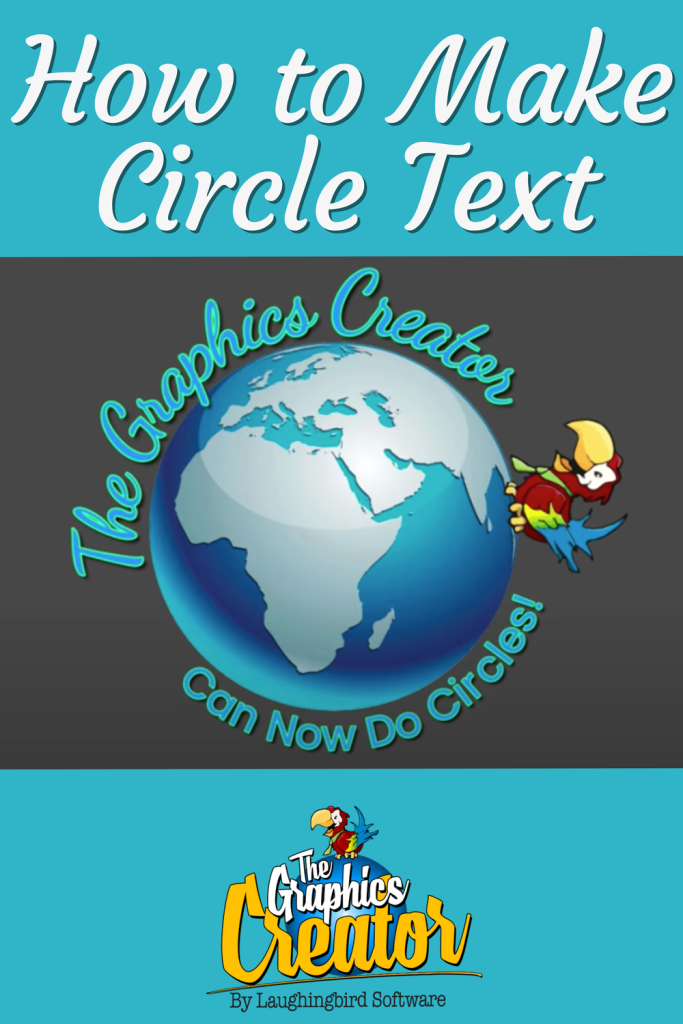
Hey there, Creatorpreneurs! Imagine trying to get your text to wrap perfectly around an object. You twist, you turn, you mutter under your breath… and yet, the text refuses to cooperate. Sound familiar? Well, guess what? The struggle is OVER! We’re thrilled to introduce our brand-new Text in a Circle Generator inside Graphics Creator. Now, placing text around objects is as easy as a few clicks. No more wrestling with awkward text boxes!

Where to Find the Text in a Circle Generator

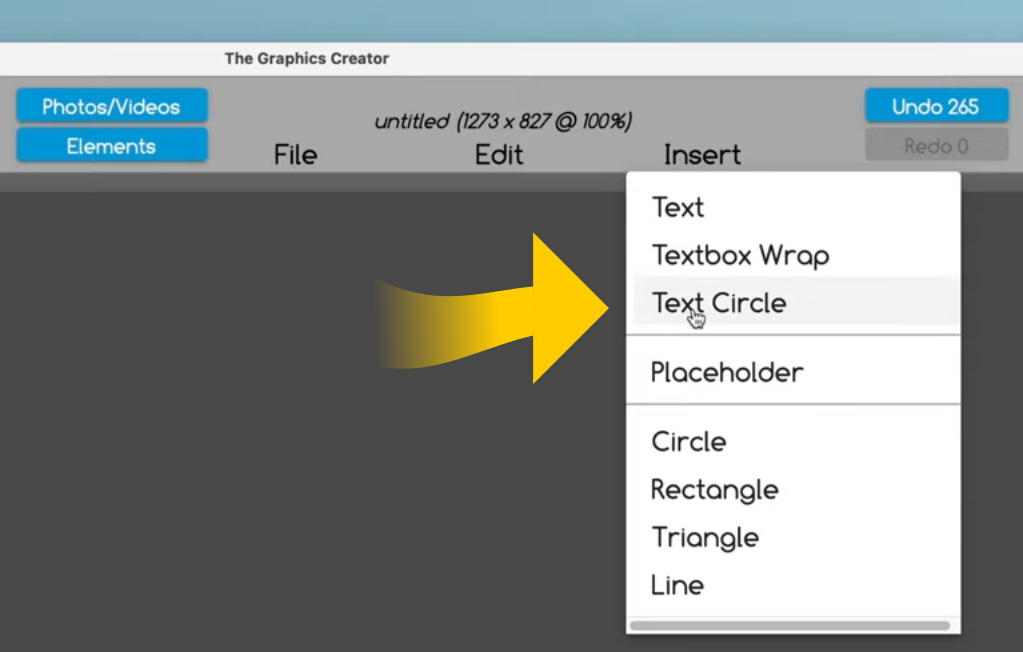
Want to get started? It’s super simple. Navigate to the new Insert menu, and there you’ll find the magical option: Text Circle. Click it, and BAM! A brand-new menu appears, dedicated to circular text control. Sounds fancy, right? It is!

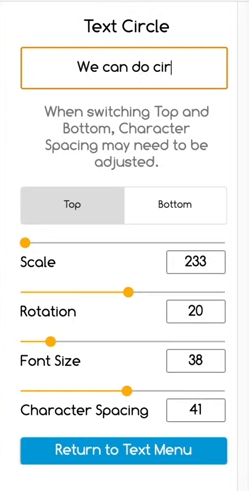
Text in a Circle Generator Menu

How to Customize Your Circular Text

Our new Text in a Circle feature isn’t just a basic tool—it gives you a TON of customization options. From resizing circles to adjusting letter spacing, you get full control over how your text wraps around objects.

Size & Positioning—Because Circles Need to Fit!

With just a few tweaks, you can resize the text circle to fit perfectly around an object. Whether you’re wrapping text around a logo, a sticker, or an alien spaceship (we don’t judge), you can:

  • Scale the text circle size up or down.
  • Rotate the text around the circle.
  • Adjust font size and letter spacing.
Circular Text Adjustments

Unlike regular text in The Graphics Creator, where you just double-click to edit, circular text works differently. You’ll need to enter your text in the box at the top of the Text Circle menu. Easy-peasy!

Fine-Tuning the Look of Your Circular Text

Need to add a little pizzazz? Adjust your font, text color, and effects using the handy blue box labeled Return to Text Menu. This takes you back to the main Text Menu where you can make all your usual adjustments.

Under Text Format, you can:

Once your font looks just right, click Return to Text Menu to apply your changes.

Modify Circular Text Options

Top or Bottom? Yes, You Can Control That Too!

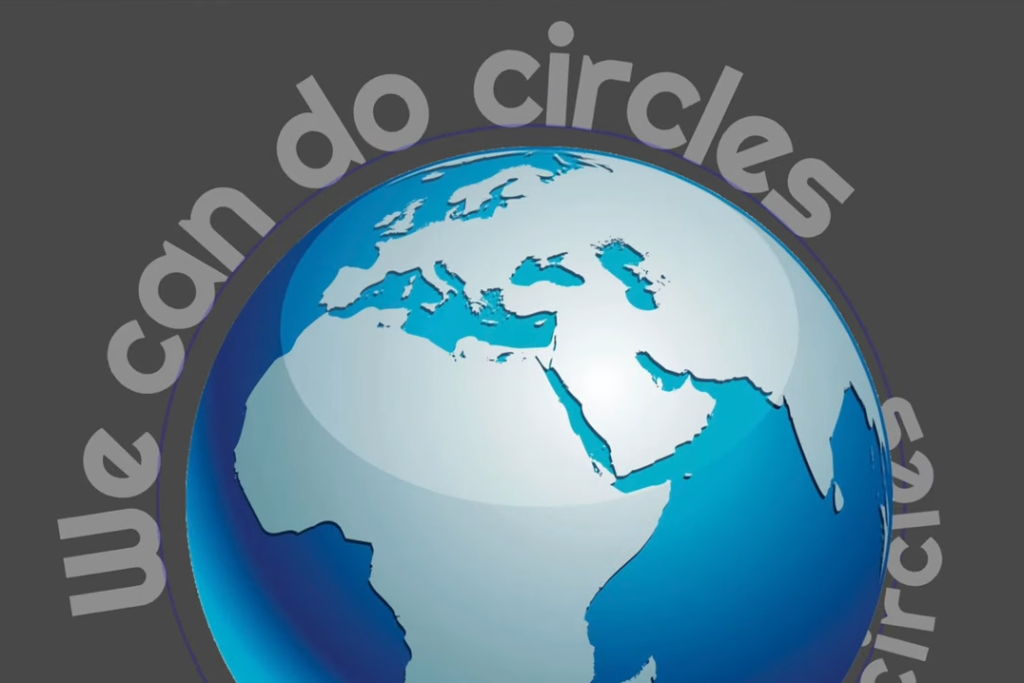
You can position your text on the top or bottom of the circle (because sometimes you just need that extra styling touch). Here’s how it works:

  • Text at the Top position sits on the outer edge of the circle.
  • Text at the Bottom position sits inside the circle.
  • You can even use different fonts for the top and bottom texts—because why not?

Adjusting the Circle Scale Without Affecting Text Size

Got an image you want your text to wrap around? No worries. Just adjust the scale of the circle WITHOUT changing the size of the text itself. A thin blue guide line appears to help you find the perfect fit.

Need fine-tuning? Use the handy slider inside the Text Circle menu. Or, if you’re a perfectionist (we get it), click the yellow dot on the scale slider and tap your arrow keys to make micro-adjustments. We won’t judge how long you spend getting it perfect.

Using Circle Text in Templates

For those who love templates (and who doesn’t?), you’ll be happy to know that you can drop circular text into any template you choose. Even if a template wasn’t designed with circle text in mind, you can still work your magic.

Just select a template, insert a new Text Circle, and start typing. You can match the template’s existing font or pick something strikingly different. Then, scale and rotate the text until it fits like a glove.

Share Your Creations with the Community

Now that you’ve mastered the Text in a Circle Generator (or at least given it a whirl), we’d love to see what you create! Join us over on the LaughingBird Software group on Facebook and flex those design skills. Whether it’s a logo, a social media post, or something entirely unique—we want to see it!

FAQs About the Text in a Circle Generator

Can I use my own fonts with the Text in a Circle Generator?

Yes! If you have the downloadable version of Graphics Creator, you can use any system font. Online users can enjoy Google Fonts.

Is the Text Circle feature available for all templates?

Absolutely! Even if a template wasn’t designed with circular text, you can insert a Text Circle and customize it as needed.

What if my text doesn’t fit the circle perfectly?

Try adjusting the character spacing or tweaking the scale until you get a perfect wrap.

How to Wrap Text in a Circle with The Graphics Creator

0

Today, we’re beyond excited to share that The Graphics Creator Software now offers an incredible new feature—wrapping text in a circle! Yes, you heard right. No more wrestling with complicated design software or spending hours trying to wrap text just right. Now, you can do it with just a few clicks.

Why Wrapping Text in a Circle is a Game-Changer

Ever tried bending text into a circle using Photoshop? It’s kind of like trying to herd cats—it requires patience, skill, and the willingness to sacrifice your entire afternoon. But with The Graphics Creator, adding curved or circular text to your designs is easier than ever.

Here’s why this new feature is a big deal:

  • Perfect for logos and branding – Create stunning text logos that stand out! Circular text is a staple in business branding.
  • Great for social media – Want to create eye-catching Instagram posts or Facebook banners? A little curved text adds immediate visual interest.
  • No design degree required – No need to learn Photoshop, Canva, or GIMP. Just drag, drop, and curve your text in seconds.

How to Wrap Text in a Circle with The Graphics Creator

Now, let’s get into the fun part—how to wrap text in a circle with The Graphics Creator. It’s ridiculously simple. Seriously, if you can move a mouse and click, you’ve got this.

Step 1: Open The Graphics Creator

First, grab your copy of The Graphics Creator. If you haven’t downloaded it yet, you can get it for Mac or Windows here, or use the online version in your browser—no installation required.

Step 2: Add Your Text

Once you’re in, add your text element. Type whatever you want—”Best Coffee in Town,” “Welcome to My Blog,” or maybe just “Hello, World!” Go all out.

Step 3: Activate the Circular Text Feature

Now, here’s the magic: Select your text, then find the “Text Effects” panel. Click on “Wrap Text in a Circle,” and BOOM—your text is curved like a pro. You can then adjust the size, spacing, and rotation for the perfect look.

Step 4: Customize Your Design

Now comes the fun part! Customize everything:

  • Change fonts – Choose from dozens of stylish fonts to match your vibe.
  • Adjust colors – Make the text pop by playing with gradients and solid colors.
  • Add images and icons – Surround your circular text with graphics and elements to make it stand out.

Step 5: Export and Use Anywhere

Once you’ve created the perfect circular text design, export your masterpiece in high resolution and use it anywhere—logos, social media, business cards, or even T-shirts!

Why The Graphics Creator is the Best Photoshop and Canva Alternative

There are plenty of design tools out there, but let’s be honest—Photoshop is complicated, Canva has limitations, and GIMP… well, who has time to figure that out?

  • The Graphics Creator is super easy to use – No learning curve. If you can click, you can design.
  • More flexible than Canva – Canva is great, but it can be restrictive when it comes to creativity.
  • Faster than Photoshop – You don’t need to spend hours learning. You’ll be designing in minutes!

And the best part? You aren’t just getting software—you’re getting a whole community of creators and access to Laughingbird Software’s Creatorpreneurs Academy. Learn smart marketing strategies and creative business tactics weekly!

FAQs About Wrapping Text in a Circle

**Can I wrap text in an oval or spiral shape, too?**

Good question! Right now, The Graphics Creator focuses on circular text wrapping, but who knows? Ovals and spirals might make an appearance soon! For now, you can manually tweak settings to create slightly oval text.

**Can I use my own fonts?**

Absolutely! The Graphics Creator allows you to import your own fonts, so you aren’t stuck using only what’s built in.

**Do I need an internet connection to use the software?**

Nope! The downloadable version works on your computer without an internet connection. But if you prefer designing on the go, the online version is available anytime you need it.

**Is this better than Photoshop?**

If you love spending five hours watching Photoshop tutorials, then maybe Photoshop is for you. But if you want a simple, fast, and effective way to design, The Graphics Creator is what you need.

Final Thoughts

Wrapping text in a circle doesn’t have to be a painful experience. With The Graphics Creator, it’s now as easy as a few clicks. Whether you’re creating a business logo, social media graphics, or a fun personal project, this new feature will save you time and frustration.

Try it out today, and let us know what you think in the comments!

Learn how to make circle text with The Graphics Creator Software by watching this short video
Share on Pinterest!