Home Blog Page 13

The Creatorpreneurs Weekly – Issue #2

0

Hey Creatorpreneurs!

I’ve been writing for a new niche blog that I’m really excited about. I can’t wait to share it with you (I’ll give you the details soon)!

Now that I’m more focused than ever on writing, I’m digging deep into the world of blogging and learning a ton during my journey. Along with visual content, keyworded content is also essential to blogging!

That’s why this newsletter offers up a free tool that’ll help you make more of an impact with your writing, whether it’s for blogging, creating ads, or website copywriting. And, be sure to watch Marc’s video to find out how to create and use visual content on social media!

– Lisa


CREATORPRENEUR TOOL OF THE WEEK

The tool for this week is so simple to use and totally free! It’s an absolute must for writers, bloggers, and copywriters… IF you want to get found on the search engines!

Google Trends
https://trends.google.com/trends

If you’re working hard researching the best keywords for your article or website, then you absolutely must spend a little extra time making sure those keywords are actually being searched for on Google.

Instead of assuming that readers are looking for the 10 “best business tools”, throw that keyword phrase in Google Trends and put in an alternative as well.

As you can see below, you’re better off writing an article about the 10 “best business apps” (in red), as there are actually more people searching for this keyword than “best business tools”. Who would’ve guessed?!

That’s my point… don’t guess!


GRAPHICS CREATOR VIDEO OF THE WEEK

Despite the thumbnail on this video (created with The Graphics Creator of course ???? ), it’s first and foremost about creating perfectly branded graphics for your biz. Marc shows you how to easily create a “batch” of social media graphics… then he’ll tell you how to get help sharing it all!

https://youtu.be/FJb7RF8B78A

PRODUCT OF THE WEEK

This is one of my favorite image sets because it’s perfect for getting noticed on social media! You can even use them as backgrounds in the examples Marc showed in the video above.

Cinemagraphs are a perfect blend between a still photograph and a video. They’re kind of like the moving portraits in Harry Potter, only they’re stunning images instead.

Each Cinemagraph loops endlessly, so you’re more likely to get seen! Just drag them onto The Graphics Creator canvas and add text or other graphics to make it yours!


CREATORPRENEUR TIP OF THE WEEK

You don’t have to constantly invent great content. Get creative and use what you have! Just change up your article or blog content to provide a fresh perspective using these ideas:

  • Turn your video into a blog article (or your blog article into a video)
  • Take an idea or two from old content and build on it to create more detailed content about that topic
  • Change your title and intro to catch the eye of a new group of people
  • Turn an article into a simple “list post”(just number important points and leave out any “fluff”)

Keep reading for more great content ideas!

See you next week! ????

The Creatorpreneurs Newsletter – Issue #1

0

Hi there Creatorpreneurs!

Welcome to issue #1 of The Creatorpreneurs Newsletter!

We’re excited to have you join us on this journey as we explore the world of creating content, being an entrepreneur… and learning how to market ourselves a little better. ????

Along with videos showing you a few tips and tricks in using The Graphics Creator, Lisa and I will be showing you some new tools we find around the interwebs that will help make things easier on us all to market ourselves.

In our first edition, let’s talk about the tool we’re using for this very newsletter! We tried creating the newsletter on our own (pasting different areas of content from our site and around the web) into our eMail campaigns, but found it super time consuming and not really ‘pretty’.

That’s how we found Revue. It’s super easy to use (look! I can do it!) and it’ll give you a ton of ideas for creating newsletters for your own small business (or just for fun to family and friends!)

Hope you enjoy this format, and this first issue. If you have any comments or questions, leave a comment below!

– Marc & Lisa


CREATORPRENEUR TOOL OF THE WEEK!

REVUE – A newsletter tool for Creatorpreneurs
This is the software Lisa and I use to create our weekly newsletter. It’s easy, fast and … fun!
Transparency: It’s free up to a certain number of subscribers. The price goes up in increments of $5/month depending on how many people you’re sending to. Well worth it tho to have a powerful tool like this.
www.getrevue.co

GRAPHICS CREATOR VIDEO OF THE WEEK

As a Creatorpreneur, being creative is easy. But marketing yourself and your new creations is a little harder. Here’s a cool way to get your name if front of others… design your own tShirts! Wear them around or hand them out to your friends and family. Watch this video to see how you can do this with
The Graphics Creator.

https://youtu.be/WVRynlo4Ekk

PRODUCT OF THE WEEK.

Every week, we’ll bring you a new set of graphics that you may not have seen.

This is a collection of 100 PNG images (with transparent backgrounds) featuring Tank the tortoise and Caesar the hare. They’re toon style characters good for all your memes, blog posts, tShirt designs, even ads!
Lance from SadDuck created these images.

https://www.laughingbirdsoftware.com/downloads/tortoise-the-hare-3d-character-elements/

CREATORPRENEUR TIP OF THE WEEK

86% of social marketers use Facebook ads, and the platform’s advertising revenue continues to grow. Meanwhile paid advertising options have come up on Instagram, Pinterest, Twitter, and elsewhere. Social media platforms are tweaking their algorithms, making it clear to brands that paid promotion is a must if you want to get visibility. If you want your social strategy to maintain or gain momentum, then embracing paid social is a must.


Thanks for reading!
See you next week!

…Now go create!

5 Social Media Graphics You Can Design For Free

0

Need a quick graphic for your social media post? Want to make one yourself, but don’t know where to start?

I’m going to walk you through creating 5 types of social media images using The Graphics Creator! (And I’m going to show you how to create them all… for free ???? )


For this article, I’m going to assume you already have The Graphics Creator software installed on your machine, or you have access to the Online Graphics Creator.


What makes good social media graphics?

In my humble opinion, it’s two things:

• They should be simple and eye catching,

• and your social media graphics should contain SOME kind of “call to action” (‘click here’, ‘buy now’, ‘visit the website’, etc …)

That’s all there is to it!

Let’s launch the free Graphics Maker tool. The Graphics Creator is the best free tool for creating awesome designs and sharing them with your friends on social media. You can create, edit and download designs and use them on Facebook, Pinterest, YouTube and other social media platforms.

The Graphics Creator has a clean, simple interface that makes it easy to create custom images. You can use this tool for creating social media graphics from scratch, or by installing a few of the ‘add-on’ packages that contain pre-made templates. A super time saver!

The possibilities are endless!

Here are 7 social media graphics you can create instantly with The Graphics Creator


Create your own Facebook Post Image

Facebook post images are good for promoting your business or sharing information with friends.

The recommended size of a Facebook post is 1200 x 630 pixels.

Using the Graphics Creator, Choose “NEW” and set the canvas to 1200 x 630.

Now let’s search the stock photos area to find something that relates to our business. For our example, let’s assume we walk dogs for a living.

Push the “Photos / Videos” button and search for something like “Dog Walking”:

Just slide the image onto the canvas. Easy.

Now, let’s Include a Call-to-Action (CTA) so your social media viewers will “take action” on the your social media channels or blog post. Create some CTA words like “We’ll walk your dog! Visit our website for more info…”, or “sign up for tomorrow’s Dog-Walking Workshop!”

you can even get creative with your blog posts or social media graphics and tell your visitors to download your newsletter, ‘find the link in the first comment’ below. It’ll make them read your post and hopefully ask a question or two.

The Graphic Creator software has over 1000 fonts built in and you can also use the fonts that you have installed on your computer.

Here’s our final Facebook post image!

(you can use this image on Twitter, Instagram or any other social media platform)


Creating videos for social media

You can create more than stationary social media graphics …another great way to stop your viewers from scrolling is to create a “motion graphic” and upload it as a Facebook post. Motion graphics will create a quick and easy way to show your visitors that you care about what they are watching.

Uploading a motion graphic may be the difference between attracting new followers… or not!

Here’s how to create a motion graphic for Facebook

https://youtu.be/oz-58ZQQa40

Create your own YouTube Channel Art

Now it’s time to get your YouTube channel art in order. The look and feel of your YouTube channel is most likely the first impression your potential customers will see when they visit your channel and it needs to be memorable, attractive, and most importantly – yours!

Using the Graphics Creator and The YouTube Add-on Set, you can choose from hundreds of templates or upload your own image and customize it however you like.

You’ll never have another boring video thumbnail again!

Choose one of the YouTube templates and Create custom YouTube thumbnail images


Create a Pinterest Pin – with a motion background!

Pinterest is one of Lisa’s favorite social media platform. The best way to get your pins noticed is by using a graphic with one of your keywords in the text.

Pinterest now allows you to create “video pins”. So using the Graphics Creator, you can create your Pin, then apply a video background (see the video above).

Did you know Pinterest’s Ai can actually read the words on your pin? It can! and it’s how you can rank a little higher than your competition

Create your own quote images

The great thing about the Graphics Creator is that you can create designs for any occasion. Maybe it’s somebody’s birthday or you just want to create some fun. You can make engaging social media graphics that are memorable for your Facebook or Twitter pages.

Whatever the occasion, you’ll be able to create eye-catching social media graphics and images that your viewers will notice.

Hop onto Google and type in “quotes for birthday” or “Quotes for the summer” – you’ll get a ton of great ideas and great quotes that are freely listed all around the web.

Next, open a new canvas and push the “Photos/Videos” button.

You can merge any of the quotes with photos to create stunning images and memorable memes. The Graphics Creator is a powerful creative tool.

Here’s an idea: set up automated timed released posts. Create 30 quote images and set them up to be released at the same time every day. Create an engaging social media posts that will magically appear on people’s feeds in the morning, noon and night.

It takes seconds to create a professionally designed quote with your favorite photo or video – The Graphics Creator is so easy to use:

graphics creator create a quote

It’s easy to get overwhelmed with the amount of time and money it takes to create social media graphics. But, you don’t have to spend a lot on either one! With The Graphics Creator app, you can generate free images for your blog posts or Facebook ads without any design experience necessary. You’re welcome ????

The Graphics Creator makes creating your own social media graphics a breeze Designing (and sharing) professional-looking visual content on your social media sites is fun!

Get started today! Create images that stand out – Simply sign up for a free account, open the app, select any of the professionally designed social media templates from our library (or upload your own images), customize with text and photos, then share!

If you have any questions about using this tool or want help getting started creating visuals for your brand’s next campaign, reach out to us! Just visit the support page.


Creating Your Own Ebook Cover and Mockup Designs – The Ultimate Guide

0

Hi there Creatorpreneurs!

One of the most common questions I get from entrepreneurs who work at home is “how can I make my own ebook cover?

Creating your own eBook Cover AND Mockup Designs

In this article, I’m going to go over the two main ways:

• Do it yourself with ebook cover templates:

• Or, you can hire a designer from a marketplace like Fiverr.com

I have some insider tips that are going to help you create a professional looking ebook cover in just 3 simple steps. Then I’ll show you 5 ways to use your designs for marketing to get more traffic, more clicks and hopefully, more sales.


How much do graphic designers charge for book covers?

First, let’s figure out if you should hire somebody to create your ebook cover, or do it yourself.

Most designers charge between $20 and $50 for an ebook cover design. Typically, if you find designers on Fiverr, for example, they’re most likely using the very tool you’ll see below to make the same eye-catching book cover images you can create yourself!

Some providers DO offer quality work however, and they’ll offer an extra package or two that may include the cover design, the 3D mockup of your ebook, and maybe a few additional items like a background image or a text overlay.


How about doing it yourself? Is it easy? is it time consuming?

It’s super easy when you use the eCover and Mockup set for The Graphics Creator. You’ll start off with a ton of eye catching software box mockups and ebook cover templates. You can tweak the ebook cover title and modify or combine them any way you want!

Create Your Own eBook and Mockup Covers
ebook cover templates from The Graphics Creator

Edit them in a few minutes; Double click on the text to change it. Add different images from the stock photos library, drag and drop additional elements onto the canvas like background images and add headlines … for free! No extra charges.

Download as many designs …and as many revisions as you want without being charged extra. You can also save your ecovers and mockups for later use, which will save you time AND money. Keep saving your designs! It’s almost like getting free ebook covers!

You can actually have a stunning ad for free at the same time! Check out the mockups below.

How do I design my own book cover?

You don’t have to be a designer in order to create your own book cover! Thousands of people all over the world are using The Graphics Creator software (and our new online graphics creator version). It’s by far the easiest way to design beautiful mockups. You can download the software for free (or try the free 1-week trial of the online version).

Step 1: Select one of the cover templates.

Add your title and author name to the book template. Adjust font size, color, text and more! Select the blue “elements” button, you can drag and drop different graphics onto your cover design.

click on the “photos” tab and drop in nice background (over a million photos are included for free) onto your ebook cover. Download your finished book graphic as a .png or .jpg file.

Step 2: “Map” the image to a 3D mockup design of your book image

Next, launch the 3D model collection. It contains hardcover book mockup, software boxes and others. Choose one and it’ll appear on the canvas. Now you can simply drag your stunning cover from the last step right onto the 3D mockup.

Select one of the 3D Mockup covers

And Step 3: Add more design elements

you can even design a full on ad if you’d like! Just add a text headline and some other elements like a nice background image. This tool makes it easy.


3 things you can use an eBook Cover Design for

Showcase your mockup or ebook design marketing yourself in a professional manner.

Have you ever seen the thumbnail graphics on fiverr? how trustworthy do some of them look to you? The graphics that DO look appealing appear far more trustworthy don’t they? You get what I’m saying.

Let’s say you’re creating a free PDF ebook you’d like your customers to download. The cover image will be the first thing potential customers see, so it’s important to design something that captures their attention and sets you apart from your competitors.

Choose a template and just follow the steps above and you’ll be able to accomplish this small task.

Use your new designs to make money by selling the ebooks design on Etsy or other sites that sell digital products

The Graphics Creator gives your full royalty free and commercial rights to sell what you make with the software. you can start a new business designing book covers and mockups. the latest version of this program comes packed with templates that are optimized for Kindle books. There’s a big market for Kindle book covers!

Use your new ebook designs as social media or blog post headers

The more blog or social media posts you write, the more changes you have of getting google to notice you. The more Google notices you, the more traffic you’ll get.

The eCover gives you professional pre designed templates and everything you need to make featured Images for your blog pages.

(there’s an online version you can use to create your ebook cover and mockups too! grab the free trial and see how easy it is.)

Creating a beautiful ebook cover is quick and easy.

You can do it yourself in about 10 minutes. You’ll never again pay high prices for a book cover designs, and you’ll always have full control over the details.

Get the 3D eCover and Mockup Creator. It’s fun and easy to use.

Now go out, design something amazing.

– I’d love to see what you come up with so please share your book covers and mockups in our Creatorpreneurs Facebook group – or point to them in the comments below!

How We Used Easy Digital Downloads to Create Our New Online Store and Marketplace

0

Hi Everybody!

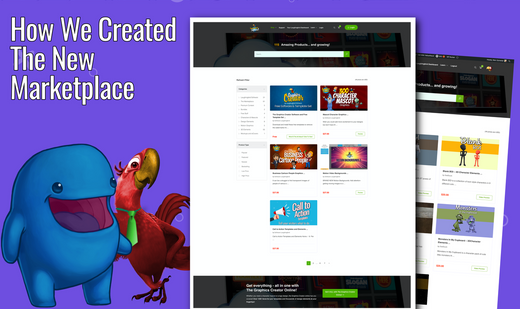
Lisa and I are proud to announce that our new marketplace website is now live!

It’s been a long time coming and we couldn’t be more excited.

We’re a small software company that’s been around for over 15 years. We’ve built great products and services, but we’re constantly looking for new ways to grow.

To stay up with the needs of our customers, we created an online version of our popular software… and it’s been doing excellent! But so many of our fans still wanted the downloadable Graphics Creator. And they wanted lots of creative content for it.

They wanted more templates, graphics of people, 3D images… it was hard to keep up with it all.

So one day we had this crazy idea of creating an online marketplace. We’ll have the very users of the software create content for the software they use! And we’ll create a way for them to sell their hard work to others!

But how? Our current membership and download system at the time wasn’t set up for a marketplace.

So we scoured the web, and found the magic solution: Easy Digital Downloads.

The reviews for it were outstanding, it was made for downloadable software… and it worked. Literally, right out of the box!

Easy Digital Downloads (EDD) is a free WordPress plugin that makes online digital products more accessible. There are now more than 102 official extensions and themes, and hundreds more third-party extensions for EDD.

Not only did EDD help us improve the download experience for our customers, it had a feature that allowed us to create an instant Marketplace!


Here Are Just the First 5 Reasons I Love Using Easy Digital Downloads:

It’s Free

It’s a plugin for WordPress. Just search for it in the WordPress plugin archives. Download it and install it. It works immediately giving you tools and features help with digital downloads of your products such as eBooks or music files… and in our case, Software.

There’s also many free and paid add-ons available that will enhance your site a million ways.

It’s User Friendly

Because EDD is a plugin, it doesn’t require any knowledge of PHP, HTML or CSS. It can be used on any website – even one that has already been made. The interface is intuitively designed and the instructions are easy to follow.

It was REALLY easy to create a complete shopping cart! For a few extra dollars, it has add-ons for listing courses & memberships, features for coupons or discounting products, item discounts and advanced reporting tools so you can profit from each sale. It’s as easy as 1-2-3!

Easy Customer Management

I love that Easy Digital Downloads makes Customer Management simple. AND it comes bundled with EDD as soon as you install the free plugin. The management feature shows us an individual’s entire history on a webpage, provides invoices that are sent to the customer, allows us to communicate directly to customer if we need to … and it allowed us to create different custom “Thank you” pages. One to show users their downloads after a purchase, and one to show users who’ve purchased the online, ‘“in the cloud” version.

Adding the Laughingbird Marketplace

The main reason we wanted EDD was to create our new marketplace. But Easy Digital Downloads has become so much more … and so much more invaluable to Laughingbird Software.

For the Marketplace, we installed a plugin they’ve made for EDD called “Front End Submissions”.

This allows our customers to create their own ‘store’. They can upload their products, write descriptions, add thumbnail images and even ad video right inside their own account area. They don’t have to ever login to the site’s back end admin area, they upload their items from the “front end” of the site.

All possible once we discovered EDD.

Their Support

I’ll tell you, I’ve learned a lot about customer support while communicating with EDD. They’re super friendly and they answer my questions perfectly. Every time. But before you even get to the ‘contact us’ form, they provide lots of instant help (with an interface has an intuitive design which makes finding my solution actually enjoyable). But if I had, for example a question about custom CSS for a specific look and feel that wasn’t included with the original plugin, they made it easy to get help from a real person.

Some of the other items and plugins we’re using for our new website:

The EidMart WordPress Theme

This is the WordPress theme We’re using. It was created by WpNinjasDevs.

The’ve become one of my favorite companies to work with. The theme is beautiful, very customizable and works 100% with Easy DigitalDownloads and the Marketplace. You can download it from ThemeForest.

Their support is also outstanding. The owner is incredibly helpful and I’ve been bugging him quite a bit for custom solutions.


AffiliateWP

This has allowed us to create a super nice Affiliate program for our customers.

(And it was created by the same developers of EDD – Sandhills Development)


All In One SEO

Which is doing really great helping us with our SEO efforts.


Elementor Pro

This is a “page builder” plugin. It’s all drag and drop and has lots of ‘widgets’ you can use to make your website really cool.


WPRocket

This is the very best performance plugin I’ve found. It’s boosted our site’s speed by 75%.

Love it.

We’ve been thinking about creating the Marketplace for a while now. We wanted an easy way for everybody to create their own store without worrying about any coding or having any design skills.

Thanks to Easy Digital Downloads and their plugins and The EIDMart theme we made it happen.

If you wanted to create your own Marketplace, these are the tools that’ll make it easier for you.

What do you think? If you have any comments or suggestions, type them out below in the comments section!

Now, go look for some downloads!

5 ways to market your design portfolio

0

“`html

Why Your Design Portfolio Needs a Marketing Boost

Let’s get real for a second: having a slick design portfolio is great… but what’s the point if no one knows about it? It’s like baking the world’s best chocolate cake and leaving it in the fridge without telling anyone (a tragedy, really). Don’t worry, though—I’ve got creative and effective solutions for you. Here are 5 ways to market your design portfolio, and trust me, no cold-calling is involved (unless you’re into that sort of thing).

Create a Killer Niche: Your Specialty is Your Superpower

First things first – niching down is everything. Imagine you’re at a massive food court. You’re starving and looking for sushi. You get to a stall selling burgers, pizza, tacos, and “a little bit of sushi.” Suspicious, right? The same applies to your portfolio. Specializing in a design niche shows potential clients that you’re an expert—not a jack-of-all-trades, master of none.

Here’s how to nail your niche:

  • Discover your passion: Do you thrive on bold typography? Obsessed with minimalism? Let your heart guide you, Obi-Wan.
  • Spy on your competition: Check what’s trending in your desired niche. Are you doing something unique? If not, how can you jazz it up?

Bonus tip: When you’ve mastered your style, shout it from the rooftops… or at least on social media. Your future clients need to see it every time they scroll—whether they’re eating breakfast or dodging their boss at work.

The Digital Runway: Showcase Your Work Like You Mean It

Start Small But Mighty: Instagram Your Designs

If you’re not turning heads with your portfolio, you’re missing out on the greatest free runway—Instagram. Here’s why an Instagram account can be the simplest (and dare I say, *most fun*) way to promote your work:

  • You’ll be where the people are: Instagram is crawling with people who scroll endlessly while procrastinating at 2 AM—why not give them something gorgeous to look at instead of that cat meme on repeat?
  • Hashtags are your BFF: Use niche-specific hashtags like #GraphicDesigner or #LogoLover to get your posts seen. (Pro tip: Don’t go crazy—30 hashtags ≠ effectiveness.)

Consistency is key here; post frequently and connect with others in your niche. Not only will you grow your audience, but you’ll also stumble upon other brilliant designers and potential collaborators! Speaking of connections…

Network Like a Pro—But Skip the Stuffy Suits

Networking doesn’t have to include name tags and awkward handshakes. Nope! In today’s world, you can network right from your couch while bingeing your favorite show. Here’s how to do it without breaking a sweat:

  • Follow other creatives on Twitter, LinkedIn, and Instagram: Comment on their work, share their posts, and—not so subtly—show off your stuff, too.
  • Join designer Facebook groups: These groups are goldmines for job opportunities and advice. Just don’t be that person who spams their portfolio every five minutes.

Oh, and always keep your DMs and emails clear of typos! You want to come off as a creative genius, not someone who fell asleep during spelling lessons. (Been there. No judgment.)

Make Your Graphics Pop Online

Why a Portfolio Website Is Your Digital Business Card

We love social media, but nothing beats having your personal design haven—a portfolio website that screams, “Look at this awesome stuff I did!” Free platforms like The Graphics Creator are a great place to start designing stand-out projects that shine on your site.

When crafting your website, keep these tips in mind:

  • Keep it simple: Fancy animations are cool, but if they make visitors want to take a nap, it’s back to the drawing board.
  • Show only your best work: This is not a digital junk drawer—curate, curate, curate!
  • Include contact info: Make it painfully easy for people to hire you—don’t make clients hunt for your email as if it’s buried treasure.

Collaborate, Celebrate, Repeat

Did you survive kindergarten? Perfect! Then you already know the golden rule: sharing is caring. Collaborating with others can open doors faster than a key card. Partner with a photographer, work with an illustrator, or team up with a marketing agency. Collaboration exposes your skills to a broader audience and builds credibility—because, let’s face it, we all love a designer who “plays well with others.”

FAQs About Marketing Your Design Portfolio

How do I attract clients to my design portfolio?

Start by defining your niche and creating high-quality work that reflects it. Then, share it consistently across platforms like Instagram, LinkedIn, and your personal website. Networking with other creatives and using relevant hashtags can also help bring in clients.

What’s the best platform for sharing my portfolio?

It depends on your style and audience. Instagram is great for quick, visual posts, while LinkedIn is perfect for professional leads. Still, nothing beats a personal portfolio website for long-lasting impact.

Do I have to spend a lot of money to market my portfolio?

Nope! Social media is free (unless you run ads), and you can create a simple portfolio website with free resources like templates and builders. Focus on building relationships and sharing content regularly—it pays off in exposure without breaking the bank.

Should I only include paid design work in my portfolio?

Not at all! Feel free to include passion projects, mock-ups, or personal experiments. What matters most is the quality and uniqueness of your work.

How often should I update my portfolio?

As often as possible! Keep it fresh by adding new projects and archiving outdated ones. You want your portfolio to look relevant and current to future clients.

The Bottom Line

Marketing your design portfolio doesn’t have to be rocket science—or even involve a tie. By focusing on a niche, building connections, leveraging social media, and creating an irresistible website, you’ll make it impossible for potential clients to ignore you. Give these tips a try, and when the job offers roll in, remember the little people (a.k.a. me) who helped you along the way. Happy designing!

“`

How to Create Your Own Brain Teaser Images with Answers

0

Brain teasers are like the crunchy snacks of the mind—fun, addictive, and oddly satisfying once you solve them. But what’s even more satisfying? Creating your own brain teaser images with answers. It might sound like a Herculean task, but let me tell you, with the right tools, it’s easier than assembling IKEA furniture (and far less frustrating).

Why Brain Teasers Are More Than Just Fun Games

Brain teasers aren’t just brain food; they’re also great for boosting engagement, sparking conversations, and keeping your audience entertained. Whether you’re a teacher trying to keep fidgety students focused, a business owner looking to spice up your social media, or just someone who loves puzzles, brain teasers are like the Swiss Army knives of content—it’s multi-purpose brilliance!

Here’s why they work:

  • They grab attention: A colorful, intriguing puzzle is way better than yet another bland block of text.
  • They’re shareable: People love a challenge and can’t resist sharing intriguing puzzles with friends.
  • They train your brain: Solving puzzles is proven to sharpen focus and critical thinking.

Now, let me show you how you can design these magical mind-busters all by yourself, even if your design skills extend no further than doodling stick figures!

Types of Brain Teasers to Create

Before we dive into the “how,” let’s talk about the “what.” Brain teasers come in many shapes and sizes, and you’ll need to figure out which type fits your audience and purpose best.

Pick your puzzle flavor:

  • Logic Puzzles: These demand step-by-step reasoning. Perfect for thinkers who like solving mysteries.

    Example: Your mother’s brother’s only brother-in-law is asleep on your couch. Who is asleep on your couch? (Answer: Your dad!)


  • Mathematical Riddles: Great for number nerds and mathletes. They make math feel less like torture and more like a fun escape room.

    Example: A family of four must cross a bridge in 12 minutes with only one torch. Each person crosses at a different speed (1, 2, 4, and 5 minutes). Can they make it?


  • Lateral Thinking Challenges: These require you to think outside the box—or in some cases, outside the room.

    Example: You’re locked in a room with no windows, a single door, and a mirror. How do you escape?


  • Word-Trick Riddles: Perfect for wordsmiths and pun lovers. Usually simpler than they seem at first glance.

    Example: What has keys but can’t open locks? (Answer: A keyboard!)


Got an idea for the type of teaser you want? Great! Let’s move on to creating it.

How to Create Your Own Brain Teaser Images with Answers

Here’s where things get exciting—because yes, you can easily design your own brain teasers. You don’t need Photoshop, an art degree, or a wild imagination (though it doesn’t hurt). All you need is graphic design software and a splash of creativity.

Step-by-step guide to brain teaser brilliance:

  1. Get the Right Tools: Before you create, you’ll need templates and graphic design software. I highly recommend Brain Teasers Puzzle Templates. They’re a lifesaver, literally providing the framework, so you just customize and go!
  2. Choose a Template: Open up your design software and pick a template that matches the vibe of your teaser. Want mathematician vibes? There’s a template for that. Mystery and intrigue? Yep, they’ve got that too.
  3. Add Your Question: Replace the placeholder text with your own brain teaser. Make it bold, colorful, and legible. Keep things exciting — nobody wants to solve a riddle that feels like a fifth-grade grammar worksheet.
  4. Customize the Graphics: Drag-and-drop images that make sense for your teaser. Just click on “Photos” or “Elements” in your software to find graphics that work. Cat puzzle? Throw some kittens in there. Math riddle? Maybe toss in some equations!
  5. Match Your Brand: If it’s for your business, customize the font, colors, and logos to reflect your brand identity. Have fun with it—quirky fonts work wonders for puzzles.

And voila! You now have a brain teaser image as unique as your morning coffee order.

How to Create Answer Graphics

What’s a mystery without a reveal? The answer image is your mic-drop moment. Creating an answer graphic is just as easy as the puzzle itself—because let’s be honest, by now you’re a pro.

Steps to create brain teaser answer graphics:

  • Duplicate Your Puzzle: Once you’ve saved your teaser, create a copy. This ensures you don’t mess up the original design while working on the answers.
  • Add the Answer: Paste the answer below the puzzle or in an empty space. Get creative—you can use arrows, highlight sections, or even add some cheeky text.
  • Style It: Use fun colors or graphics to draw attention to the answer. Remember, this is the moment of truth, so let it shine!

And don’t worry about formatting—the same easy-to-use tool you used for the teaser will handle it all.

Why Use Brain Teasers in Your Business?

I know, I know—you’re thinking, “How does a silly puzzle help me sell more widgets, Sheila?” Well, let’s break it down.

When brain teasers meet marketing magic:

  • Engagement Boost: Puzzles stop the scroll! You’ll see more likes, shares, and comments when you post an intriguing puzzle.
  • Brand Awareness: Add your logo to the teaser, and suddenly, your brand is front and center in a fun, non-intrusive way.
  • Lead Generation: Create a challenge where people submit answers for a prize, and boom—you’ve got email addresses to grow your list.

And here’s a pro tip: puzzles that show off your industry expertise (like tech riddles for IT companies) add extra flavor to your brand seasoning.

How to Use Brain Teasers in the Classroom

Now let’s swap out your entrepreneur hat for a teacher’s one. Using brain teasers in classrooms can make you the teacher rockstar kids remember forever—or at least get them through the lesson without zoning out like zombies.

Fun ways to use puzzles with students:

  • Warm-up Activity: Start classes with a teaser as a “mental stretch.” It gets those synapses firing!
  • Break-time Energizer: Use puzzles to re-engage students after lunch or recess when their brains need a kick-start.
  • Homework Fun: Assign a puzzle so intriguing that students forget it’s still technically homework.

Trust me, when math meets a colorful visual brain-teaser, kids suddenly stop complaining about algebra and start solving it faster than you can say “pop quiz.”

FAQs About Making Brain Teaser Images

How do I make kid-friendly brain teasers? Create age-appropriate puzzles by using simple graphics (think fruit, animals, or basic shapes). Avoid anything too complex, and use bright, engaging visuals to keep their attention.

Can I share these teasers online? Yes! They’re perfect for social media, newsletters, and websites. Just be sure to add your branding or logo so people know who to thank for the fun challenge.

What if I have no design skills? No worries! Tools like Laughingbird Software are made for beginners. Simple drag-drop-and-done features will have you designing like a pro in minutes.

Can I sell my designs? Check the licensing instructions for your templates or software. Many allow you to use your creations for commercial purposes, which means you could make and sell custom puzzles—a win-win!

Ready to Create Your Own Masterpieces?

The only thing left to do now is dive in and start creating! Whether it’s for fun, business, or education, designing your own brain teaser images with answers is a rewarding way to get creative (and maybe earn some bragging rights). Start with the Brain Teasers Templates to kick things off.

Remember, the best puzzles don’t just stump—they delight, engage, and keep people coming back for more. So, what are you waiting for? Go forth and puzzle the world (literally)!

Create regular newsletter features to give your readers something to look forward to

0

https://www.laughingbirdsoftware.com/downloads/youtube-channel-art-templates/

Welcome to The Creatorpreneur Tips Newsletter

Picture this: You’re sitting there, coffee in one hand (or tea, no judgment), and checking your emails. Boom! Right in your inbox lands a golden nugget from Marc & Lisa—offering insight, inspiration, and yes, let’s be honest, a nudge toward making that online business thrive. Our Creatorpreneur Tips Newsletter is designed to dish out weekly wisdom with a side of humor, making it as easy to digest as your favorite breakfast sandwich.

Now, before you roll your eyes at another “make money online” spiel, let’s be clear: This isn’t a “click here and get rich by Tuesday” kind of thing. Nope. What we share are tried-and-true strategies that have worked for us (and so many others). We believe in the power of sharing good stuff, so get ready! Bonus spoiler: These tips might just send more traffic your way. Not a bad deal, right?


Create Regular Newsletter Features to Give Your Readers Something to Look Forward To

Let’s talk about newsletters for a second. Ever noticed how much people love a sequel? Whether it’s the next binge-worthy season of a Netflix drama or just the anticipation of leftover pizza, we’re wired to look forward to what’s next. That’s exactly the vibe your newsletter should have.

If you’re not adding consistent features to your emails, now’s the time. Your audience should be saying, “Oh, it’s Tuesday! Time for another killer tip in my inbox!”

Why Regular Features Work Like Magic

Here’s the deal—people love routines. I’m not suggesting your readers are mindless bots (well, some might be AI enthusiasts, but still), but predictable content is comforting. It signals reliability. Plus, it builds excitement—just like when you open the fridge at midnight knowing there’s cake waiting for you. And, let’s be real, that’s a pretty good feeling.

Ideas for Your Regular Features

Need inspiration? Here are some tried-and-true newsletter feature ideas to keep your readers not only engaged but actively looking forward to your emails:

  • Freebie Fridays: Who doesn’t love free stuff? Share templates, workbooks, or guides to make your subscribers’ lives easier.
  • Tips Tuesdays: Give them a bite-sized, actionable strategy they can use immediately.
  • Infographic Wednesdays: Visual learners will thank you for delivering key insights in an easy-to-digest graphic.
  • Special Offer Mondays: Surprise your audience with deals, discounts, or exclusive subscriber-only bonuses.

If none of these fit your brand perfectly, no worries. Think about what excites your audience. Do they love step-by-step tutorials? Are they meme junkies? Understand what clicks with them—and serve more of that.

Pro Tip: Build Anticipation

Here’s a trick from the email marketing pros: Tease your upcoming feature ahead of time. If you’re launching “Special Offer Mondays,” start hyping it up on social media a few days before. Maybe drop hints like, “Got an inbox treat coming this Monday—be ready!” The suspense is irresistible, and more eyes will be eagerly waiting for your newsletter.


How to Create Email Content That Sticks

Alright, establishing regular newsletter features is one thing. But what good is consistency if your content falls flat? Here’s the secret sauce: Make it relatable, engaging, and yes—sprinkle in humor.

Storytelling: The Secret Weapon of Great Newsletters

People love stories, especially the kind that make them nod in agreement or chuckle at your misadventures. Ever had a total digital disaster? Share it. Ever figured out a game-changing hack? Tell them how and why it worked.

Example: I once thought I was *this close* to creating the perfect logo… until I realized I’d completely botched the proportions. What I ended up with looked more like abstract modern art gone wrong. Many embarrassing email exchanges later, I found Laughingbird Software, and let’s just say my designs have been thriving ever since. See what I did there? Relatable AND an amazing tool recommendation. You’re welcome.

Write Like You Talk

Here’s a thought—would your best friend want to read your newsletter? If it sounds like a dull, droning lecture, probably not. Your emails shouldn’t feel like they belong in a dusty textbook. They should feel like a conversation.

Best practices for writing engaging newsletters:

  • Use contractions and casual language
  • Throw in humor—appropriately, of course
  • Use GIFs or memes if that fits your audience
  • Keep things bite-sized—no one has time for a novel in their inbox

Engage and entertain while still being informative. That’s the winning combo.


FAQs on Creating Regular Newsletter Features

How do I know what kind of regular features my audience will love?

Ask them! Run a poll or survey. Pay attention to metrics—what’s getting the most opens and clicks? See what people reply to and amplify more of that.

How often should I send newsletters?

Consistency is key. Whether it’s weekly, bi-weekly, or monthly, just make sure your audience knows when to expect it.

How do I make my newsletters stand out visually?

Use engaging visuals! Laughingbird Software is an excellent tool for creating graphics that pop.

Can I use humor even if I’m in a more traditional industry?

Yes! A little humor can make even the driest topic feel more digestible. Just keep it relevant and appropriate for your audience.

What’s the best way to grow my email list?

Give people an incentive—offer a freebie like a guide, resource, or discount in exchange for signing up.


Wrap-Up: Make Your Newsletter a Must-Read

At the end of the day, you want your newsletter to feel like a tiny weekly (or monthly) gift your subscribers *can’t wait* to open. Content should be valuable, fun, and worth their inbox space.

Want a quick checklist?

  • Keep it consistent—give your audience something to look forward to
  • Make content simple, actionable, and digestible
  • Inject personality—dry, corporate-language-free zone
  • Utilize smart visuals to enhance readability

By following these tips, you won’t just gain subscribers—you’ll gain loyal readers who actually enjoy hearing from you. And if you need some killer graphics to spice things up, go check out Laughingbird Software for tools that’ll take your newsletters up a notch.

Here’s to writing newsletters that people *actually* look forward to. Who knows? Your next viral hit could be just one email away!

How to Become an Online Graphic Designer without Going to School

0

Ever dreamed of becoming a graphic designer but didn’t want to spend years in school or empty your bank account on fancy design programs? You’re not alone. The good news is that you can learn graphic design online, right from your laptop, without a college degree or breaking the bank. Intrigued? Well, let’s dive into how to become an online graphic designer without going to school.

Why You Don’t Need a Design Degree to Be a Graphic Designer

Once upon a time, if you wanted to be a graphic designer, you had to enroll in a prestigious art school, study color theory until your eyes bled, memorize obscure design rules, and graduate with student loan debt that could rival a mortgage. Not anymore.

Here’s the thing—most businesses and entrepreneurs don’t care where (or if) you went to design school. They care whether you can design eye-catching graphics that make them or their brand look amazing. And guess what? That’s something you can learn on your own.

If you have an eye for creativity and the right tools at your disposal, you can build a successful career in graphic design without spending years in a classroom. Instead, you can self-teach the skills you need, practice your craft, and start working on real projects today.

What You Need to Get Started as an Online Graphic Designer

Before you panic and think you need a high-tech, ultra-expensive setup, let’s clear that up. You don’t need much to get started:

  • A computer (desktop or laptop—it doesn’t have to be fancy)
  • Graphic design software (preferably easy to use and not requiring a PhD in Photoshop)
  • A willingness to learn, experiment, and have fun

That’s it. No complicated software manuals, no four-year degree, no selling your soul to student loans.

Choosing the Right Graphic Design Software

One of the most intimidating parts of graphic design is the software. If you’ve ever opened Photoshop and immediately closed it because it looked like an alien control panel, I feel you.

Luckily, you don’t need to start with complex professional tools to create professional-looking designs. A much easier (and sanity-saving) approach is to use The Graphics Creator software, which is beginner-friendly, yet powerful enough to make stunning designs.

The beauty of The Graphics Creator is that it provides templates to help you kickstart your creativity while allowing full customization. So, if you’re feeling creatively stuck, you can tweak a template instead of starting from scratch.

Download and Set Up Your Software

The first step toward your graphic design journey? Grab your free trial of The Graphics Creator and install it. Follow the instructions, log in, and boom! You’re officially on your way to becoming a graphic designer.

Learning Graphic Design on Your Own

Now that you’ve got your tools ready, it’s time to learn how to use them to create jaw-dropping designs. And nope, you don’t have to spend months reading a dry textbook. Instead, learning graphic design is best done through hands-on practice and fun, engaging tutorials.

Your First Design Class (Spoiler: It’s Not Boring)

Forget the classroom-style lectures. The best way to learn graphic design is by watching and doing at the same time.

Start with the 9-part video tutorial series that walks you through all the basics of The Graphics Creator. Each short video will teach you essential skills like how to use text, colors, and images to create professional graphics.

And the best part? You can pause anytime, rewind if necessary, and go at your own pace.

Practice Makes a Graphic Designer

Once you’ve watched the tutorials, it’s time to start designing. Don’t aim for perfection—just create.

Practice by designing mock social media posts, business logo ideas, or even just fun graphics for your own use. Need inspiration? Check out the Laughingbird Software template collection for quick-start ideas.

Building Your First Portfolio (Even If You Have Zero Clients)

One small hurdle—most clients want to see a portfolio before hiring you. So how do you build one if you’ve never had a client? Easy!

  • Design fake ads for imaginary businesses (your dream client deserves a sample, right?).
  • Redo designs of existing brands as a fun challenge.
  • Create social media graphics for friends, family, or small businesses that could use some help.

Before you know it, you’ll have a portfolio filled with polished work to show off.

How to Make Money as an Online Graphic Designer

At this point, you’ve got the skills and the portfolio. Now it’s time to turn those designs into dollars.

Where to Find Your First Paid Clients

You don’t need a fancy job posting to start making money. Try these options:

  • Freelance job sites: Platforms like Fiverr, Upwork, and 99designs are great for beginner designers who want to build experience while getting paid.
  • Social Media Groups: Small business owners in Facebook groups often need affordable design work.
  • Local Businesses: Check with local cafes, boutiques, and small businesses that need graphics for promotions or social media.

Becoming a Better Designer Every Day

Like any skill, graphic design gets better with practice. But aside from experimenting, there are a few extra ways you can continue improving:

FAQs: Everything You Wanted to Ask About Becoming an Online Graphic Designer

Do I need to be good at drawing to be a graphic designer?

Absolutely not! Most modern graphic design involves working with fonts, colors, and layouts, not hand-drawn illustrations.

How long does it take to become a graphic designer?

You can start creating professional designs in just a few hours. Mastering the craft takes practice, but you don’t need years to get started.

Can you be a graphic designer with no experience?

Yes! Everyone starts somewhere. Tools like The Graphics Creator make it easy to dive in, even if you’re a total beginner.

Is graphic design a good career for remote work?

It’s one of the best! Many companies need online visuals, and freelance designers often work entirely remotely.

What’s the fastest way to learn graphic design?

By doing! Grab The Graphics Creator, follow the tutorials, and start designing right away.

Ready to Become a Graphic Designer? Start Now!

You don’t need a degree. You don’t need expensive software. You just need a creative spark and the right tools.

Start by grabbing your free trial of The Graphics Creator, watch the tutorials, and get to work building your online graphic design career. Who knows? You might just become the go-to designer that businesses and brands can’t get enough of.

How To Create Your Own Billboard-like Design

0

Hi there, Creators!

Ever looked at a billboard and thought, “Wow, that’s a design masterpiece—art in the wild”? Maybe not. Maybe you were just stuck in traffic, staring at it while contemplating your life choices. Either way, billboards are everywhere, and they capture attention in an instant.

Now, imagine being able to create **your own billboard-like design** for **social media**, your website, or even a real billboard if you’re feeling ambitious. The good news? You don’t need a **graphic design degree**, an overpaid designer, or an advanced Photoshop license. Nope, all you need is **The Graphics Creator**—your new favorite design tool.

Let’s dive into **how to create your own billboard-like design**, even if you have zero design experience and an unhealthy addiction to coffee.

## Why Create a Billboard-Like Design?

Billboards are designed to **quickly capture attention and deliver a clear message**—which is exactly what you need for:

– **Social media graphics** (Engaging Facebook posts, bold Instagram promotions, attention-grabbing YouTube thumbnails)
– **Website banners** (Because your homepage deserves better than a blurry stock photo)
– **Online ads** (Facebook, Google, Pinterest—you name it)
– **Real-world posters and banners** (Feeling fancy? Print it out. Make it HUGE.)

With the **Graphics Creator Software**, this isn’t just possible—it’s **easy and fun**. Plus, it’s **the best alternative to Photoshop and Canva Pro**, without the complexity and without making your wallet cry.

## What You’ll Need to Create a Billboard-Like Design

Before we unleash our inner design wizard, here’s what you need:

– **A computer with internet access** (Yes, this means no designing via messenger pigeons)
– **The Graphics Creator Online Software** – If you don’t have it yet, grab it [here](https://www.webgraphicscreator.com).
– **An idea** – A shocking requirement, I know. But seriously, think about **what message you want your design to convey**.
– **A sense of adventure** – Okay, this is optional, but encouraged.

## Step 1: Open The Graphics Creator Online

First things first, head over to **[The Graphics Creator](https://www.webgraphicscreator.com)** and log in. No downloads, no complicated installs—just pure, creative magic waiting to happen in your browser.

## Step 2: Choose a Template (Or Start From Scratch)

The software offers **pre-designed templates** to give you a head start. These templates are your shortcut to a great design, saving you from staring at a blank screen hoping inspiration strikes.

Want to start fresh? That’s cool too. Just **open a blank canvas** and prepare for your creative genius to shine.

## Step 3: Add Your Background

You know what grabs attention? **A killer background.**

With The Graphics Creator, there are **tons of background options**:

– **Solid colors** (Classic. Simple. Effective.)
– **Textures and gradients** (Make it fancy.)
– **Stock images** (Because why reinvent the wheel when you have access to stunning graphics?)

## Step 4: Add Text That Pops

Billboards in the real world don’t have time for unreadable fonts. **Neither should your design.**

Here’s how to get text that works:

– **Use bold, readable fonts** (No one wants to guess what it says)
– **Make it relevant** (A bakery ad with Comic Sans? Never.)
– **Use contrasting colors** to make it pop
– **Outline or shadow your text** if you need extra visibility

And let’s not forget **alignment**. The left side, center, and right side all give a different vibe. Choose wisely.

## Step 5: Add Eye-Catching Graphics

A billboard (or any ad) without visuals is like **a peanut butter sandwich without peanut butter**: pointless.

In The Graphics Creator, you can:

– **Upload your own images** (Logos, product shots—make it yours)
– **Use built-in graphics** (Icons, elements, and design goodies ready to go)
– **Resize, move, and arrange** elements easily (No fighting with layers—just drag and adjust)

Pro-tip: **Stick to a color scheme.** No one wants to be blinded by an exploding rainbow of chaos.

## Step 6: Fine-Tune Your Design

Before you save your masterpiece, do a **final quality check**:

✔ Is the text **clear and easy to read**?
✔ Do the colors and visuals work well together?
✔ Does the design **communicate your message instantly**?
✔ Would *you* stop and look at it?

If the answer is “YES!”—high five! If not, tweak things until it feels **just right**.

## Step 7: Save and Export

Once you’re happy with your design, simply **save and export** in high resolution.

🖼 **Use PNG for online graphics**
📄 **Use PDF or scalable formats for print-quality designs**

Boom. You just made a **professional-level billboard-like design**, and you didn’t even have to bribe a graphic designer with coffee!

## The Graphics Creator: The Best Tool for Billboard Designs (And More!)

You don’t need Photoshop stress or Canva Pro fees. **The Graphics Creator Software** is your **affordable, easy-to-use alternative**:

✅ **No learning curve** – if you can drag and drop, you can design
✅ **Huge library of templates and graphics** – so you never start from scratch
✅ **Perfect for businesses, marketers, and entrepreneurs**
✅ **Includes access to the ‘Creatorpreneurs Academy’** (Get bonus training, resources, and expert tips!)

Get started now at **[Web Graphics Creator](https://www.webgraphicscreator.com)** or check out **[Laughingbird Software](https://www.laughingbirdsoftware.com)** for more cool design tools.

## FAQs

**Can I use The Graphics Creator even if I’m not a designer?**
Absolutely! If you can drag, click, and type, you can create amazing billboard-like designs with this tool. No confusing menus, just **pure creativity made simple**.

**What if I want to design something other than a billboard-style graphic?**
Go for it! The Graphics Creator works for **logos, banners, YouTube thumbnails, blog images, social media graphics, and way more**.

**Is this really an alternative to Photoshop or Canva?**
Yes! It’s **WAY easier to use** and doesn’t require a monthly subscription like Canva Pro. Plus, Photoshop? That requires a 12-hour tutorial just to crop an image. Who has time for that?

**Can I create a billboard for an actual roadside ad?**
Totally! Just make sure you adjust your **dimensions and resolution** accordingly so that it prints clearly in a large format.

**Is there a free trial?**
Visit **[The Graphics Creator](https://www.webgraphicscreator.com)** to check out current offers, trials, and bundles!

### Final Thoughts

There you have it, folks—**how to create your own billboard-like design** without stress, crazy software costs, or a graphic design diploma.

Now, go forth and unleash your creativity! **Your next eye-catching ad, social media post, or website banner is just a few clicks away!** 🚀